Tired of friends or family snooping through your private messages, photos, or banking apps when they borrow your phone? If you’re a Samsung user, you’re in luck! Keeping your sensitive data under wraps is easier than ever. This guide will show you how to easily lock apps on Samsung phones using built-in features, giving you peace of mind and robust privacy control as of 2024. No more awkward moments or security worries — just simple steps to secure your digital life.
Why This Matters
In today’s connected world, our smartphones are repositories of personal and professional information. From financial apps and health records to private conversations and photos, the data on your Samsung Galaxy phone is often more sensitive than what’s on your computer. Leaving these apps unprotected is like leaving your diary open on a coffee table. Not only does it invite prying eyes, but it also increases your risk if your phone ever falls into the wrong hands.
Protecting your apps with a password, PIN, or fingerprint isn’t just about preventing casual snooping; it’s a crucial step in overall digital security. It adds an essential layer of defense against identity theft, unauthorized access to your accounts, and the accidental sharing of confidential information. Taking a few minutes to secure your apps can save you hours of headache and potential financial loss down the line.
The Best Way to Lock Apps on Samsung: Secure Folder
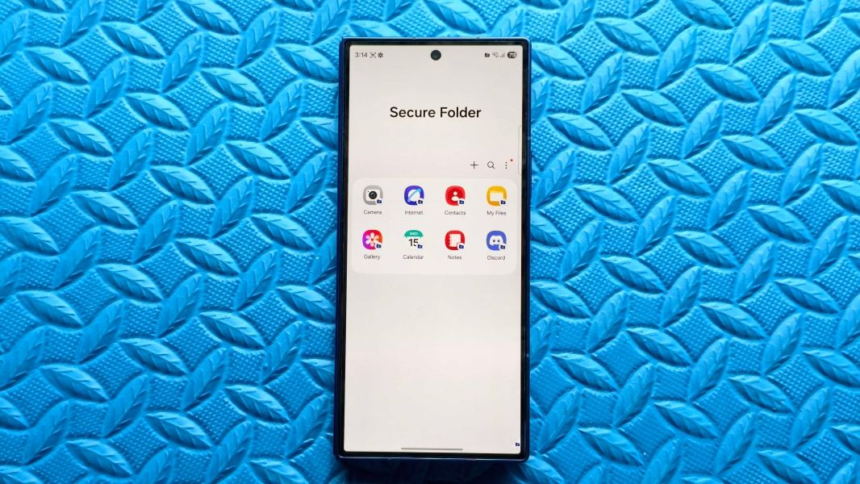
Samsung’s Secure Folder is arguably the most robust and integrated solution for privacy on your device. It creates a separate, encrypted space on your phone where you can store apps, photos, documents, and other files, completely isolated from your main phone environment. Apps inside the Secure Folder require a separate authentication (PIN, pattern, password, or fingerprint) to access, even if your main phone is unlocked.
How to Set Up Secure Folder on Your Samsung Phone
Setting up Secure Folder is straightforward and leverages your Samsung account for secure recovery. Here’s how to get started:
- Open your phone’s Settings app.
- Scroll down and tap on Security and privacy.
- Look for the Secure Folder option and tap it.
- You’ll be prompted to agree to the terms and conditions. Read them and tap Continue.
- Sign in with your Samsung account. If you don’t have one, you’ll need to create it. This account is essential for recovering access to your Secure Folder if you forget your lock method.
- Choose your preferred lock type for the Secure Folder: Pattern, PIN, Password, or Fingerprint. We recommend using a strong PIN or password, and enabling fingerprint for quick access.
- Follow the on-screen prompts to set up your chosen lock method.
- Once configured, the Secure Folder will be created. You’ll see its icon added to your Apps screen.
How to Add Apps to Secure Folder
Once Secure Folder is set up, you can start adding the apps you want to protect:
- Open the Secure Folder from your Apps screen.
- Inside the Secure Folder, tap the + (plus) icon to add apps.
- You’ll see a list of apps currently installed on your phone. Select the ones you want to move or copy into Secure Folder. You can also tap Download from Play Store or Download from Galaxy Store to install new, separate instances of apps directly into the Secure Folder.
- Tap Add. The selected apps will now appear within your Secure Folder.
- To move files (like photos or documents) into Secure Folder, open the respective app (e.g., Gallery, My Files) from outside Secure Folder, select the items, tap the three dots or More option, and choose Move to Secure Folder.
Ensuring Your Secure Folder Stays Locked
For maximum protection, you need to ensure your Secure Folder locks automatically. Here’s how:
- Open the Secure Folder.
- Tap the three vertical dots (menu icon) in the top right corner and select Settings.
- Tap on Auto lock Secure Folder.
- Choose Immediately. This ensures that your Secure Folder locks the moment you leave it or turn off your screen.
- (Optional) If you want to hide the Secure Folder icon from your main Apps screen for extra discretion, go back to Secure Folder settings and toggle off Show Secure Folder on Apps screen. You can then access it via the Quick Settings panel (swipe down twice from the top of your screen and look for the Secure Folder icon).
Alternatives to Secure Folder
While Secure Folder is excellent, there are other methods to consider depending on your specific needs.
- Third-Party App Lockers: Apps like App Locker Pro offer similar functionality by allowing you to password-protect individual apps. They often come with extra features like intruder selfies or disguised icons. However, be cautious: these apps require extensive permissions (like access to usage data or device administrator rights) and their security can vary. Always download from reputable sources and read reviews.
- Individual App Locks: Many sensitive apps, especially banking apps, messaging services (like WhatsApp), and note-taking apps, have their own built-in fingerprint or PIN lock features. Check the settings within these specific apps for an added layer of security that works independently of your phone’s system-wide lock.
Pro Tips for Enhanced App Security
- Use Two Versions of an App: With Secure Folder, you can have two separate instances of the same app – one in your main phone environment and one inside the Secure Folder. This is perfect for separating work and personal accounts on apps like Gmail, WhatsApp, or social media, each with its own login and data.
- Hide Secure Folder: As mentioned, you can hide the Secure Folder icon from your main app drawer. Access it via the Quick Settings panel for discreet entry. This makes it less obvious that you’re using a hidden space to secure apps Samsung.
- Backup Your Secure Folder: In Secure Folder settings, you can find an option to backup and restore its contents. This is crucial if you ever need to reset your phone or transfer to a new device. Make sure you regularly back up your important data.
- Regularly Review Permissions: Whether using Secure Folder or third-party app lockers, periodically review the permissions granted to all your apps. Unnecessary permissions can be a security risk.
Limitations and Considerations
While locking apps on your Samsung phone provides significant benefits, it’s important to be aware of certain limitations:
- Storage Usage: Secure Folder creates a separate environment, meaning apps copied into it will consume additional storage space. If you have a phone with limited storage, be mindful of how many apps you duplicate.
- Performance Impact: While generally minimal, running apps within the encrypted Secure Folder environment might introduce a slight, almost imperceptible, performance overhead for some resource-intensive apps.
- Third-Party App Locker Risks: Relying solely on third-party app lockers can be risky. Some might be poorly designed, contain ads, or even be malicious. They often require extensive permissions, which, if misused, could compromise your privacy rather than protect it. Always stick to highly-rated and trusted developers.
- Not a Full Security Solution: Locking apps is a great step, but it’s not a complete security solution. Always combine it with a strong device lock screen, regular software updates, and caution when downloading apps or clicking links. For a deeper dive into overall device security, check out this Samsung Security Guide.
The Bottom Line
When it comes to how to lock apps Samsung devices, Secure Folder is your go-to. It’s a powerful, integrated tool that provides robust security and privacy for your sensitive applications and files without needing to download anything extra. It’s the simplest and most effective way to password protect apps Samsung offers.
- For most users, Secure Folder is the ideal solution. It’s built-in, highly secure, and seamlessly integrates with your Samsung phone.
- Consider individual app locks for specific apps that offer them, like banking or messaging apps, for an extra layer of defense.
- Approach third-party app lockers with caution. While they can work, they introduce potential security risks and often come with ads.
Take control of your privacy today. Set up Secure Folder on your Samsung phone and enjoy the peace of mind that comes with knowing your private data is truly private. Try Samsung Secure Folder (affiliate link) today for ultimate app security.