



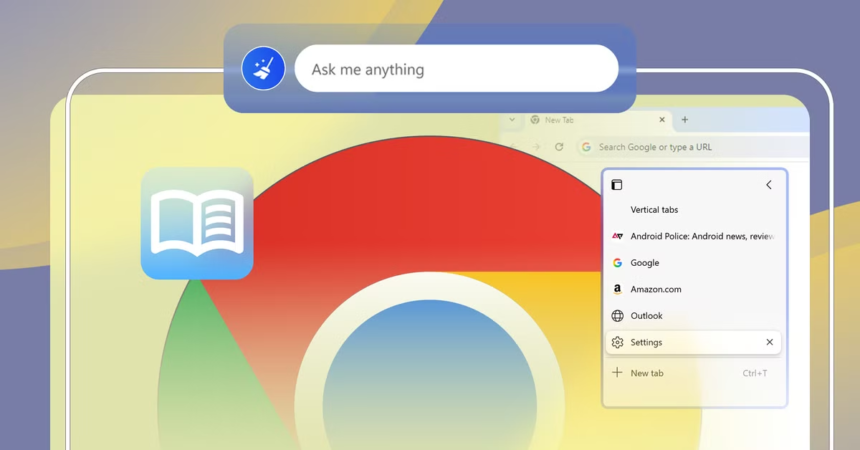
Chrome’s engineers ship new capabilities constantly, but many of them land in hidden menus (like Performance) or behind experimental chrome://flags toggles before they’re visible to everyone. If you know where to look, you can get early access to smarter tab management, aggressive memory optimization, dark mode for every site, faster downloads, cleaner reading views, and more.
Below is a practical, step‑by‑step tour of Chrome’s “pro features” that actually change your day‑to‑day browsing, not just cosmetic tweaks.
Turn On Chrome’s Performance Panel (Memory Saver & Energy Saver)
Chrome’s biggest reputation problem is that it’s a resource hog. New Performance settings directly target that by adding Memory Saver (and on laptops, Energy Saver) to free RAM and extend battery life.
Enable the Performance panel
- Open Chrome.
- Go to: Settings → Performance (or paste
chrome://settings/performancein the address bar). - If you see Memory Saver, turn it On.
If the Performance section doesn’t appear yet, you can usually enable it via the experimental flag:
- Go to
chrome://flags/#high-efficiency-mode-available - Set to Enabled and restart Chrome
- Then check
chrome://settings/performanceagain.
What Memory Saver actually does
With Memory Saver on, Chrome automatically suspends inactive tabs after they’ve been in the background for a while, freeing up memory while keeping the tab visible. When you click back into a suspended tab, it reloads its content.
Google claims up to 40% and several gigabytes less RAM usage on heavy tab sessions, especially useful on machines with 8 GB or less RAM.
You can whitelist sites that should never be suspended (e.g., music players, dashboards):
- In Settings → Performance → Memory Saver, add critical sites under “Always keep these sites active.”
On laptops, you’ll also see Energy Saver which lowers visual effects and background activity to squeeze more time from the battery.
Treat Profiles Like Separate Browsers (Work / Personal / Side Projects)
One of Chrome’s most “pro” features is profiles—completely separate environments with their own history, cookies, extensions, passwords, and themes.
Instead of shoving everything into one chaotic browser, set up:
- A Work profile (company accounts, productivity tools, work bookmarks)
- A Personal profile (email, social media, shopping)
- Optional Side Project / Client profiles
Create and switch profiles
- Click your profile icon (top‑right).
- Click Add or Manage profiles.
- Create a new profile, choose a name and icon.
Each profile:
- Has its own extensions and performance footprint.
- Can be launched in its own window or even pinned to the Dock/Taskbar separately.
- Keeps cookies/sessions isolated (no more logging out of one Google account to log into another).
Power users often report big productivity gains just from context separation—you’re less likely to “just check Twitter” if that tab lives in a different Chrome profile.
Master Tabs: Groups, Search, Pinned Tabs & History Rescue
Chrome’s tab system has acquired several “pro” tools that make large tab counts manageable.
Tab Groups = project containers
Tab Groups let you color‑code and label sets of tabs (e.g., “Client A,” “Research,” “Backlog”).
- Right‑click a tab → Add tab to new group
- Give the group a name and color
- Drag other tabs into the group
- Click the group label to collapse/expand all its tabs
This is especially useful when combined with profiles (e.g., multiple active projects inside a Work profile).
Tab Search = command palette for tabs
Chrome’s Search Tabs (the little downward caret or circle icon at the far right of the tab strip) is effectively a tab command palette.
- Click the Tab Search icon or press Ctrl+Shift+A (Windows/Linux) or ⌘+Shift+A (Mac, depending on config).
- Type part of the page title or URL.
- Jump directly to that tab without hunting visually.
Pinned tabs for always‑on tools
Pin tabs you always want open (email, calendar, task manager):
- Right‑click a tab → Pin.
- It shrinks to an icon and locks to the left side; it also reopens automatically next time you start Chrome (if you restore your last session).
Instant “oh no” recovery: reopen closed tabs/windows
If you close something important:
- Ctrl+Shift+T (Windows/Linux) or ⌘+Shift+T (Mac) reopens the last closed tab or window.
- Press it multiple times to walk back through recently closed items.
For deep history, use the History menu or chrome://history.
Use the Omnibox Like a Command Line
The address bar (“Omnibox”) is a programmable input field, not just a URL bar. Using it like a CLI is a hallmark of Chrome power users.
Quick search operators
- site:domain.com term – search within a specific site
site:stackoverflow.com chrome flags
- filetype:pdf term – search for PDFs
filetype:pdf deep learning introduction
- cache:url – view Google’s cached copy of a page
Instant calculations & conversions
Type directly into the Omnibox:
27*42/1.8→ shows a calculator result25c in f→ Celsius to Fahrenheit200 usd to eur→ live currency conversion
No need to open Google first; hitting Enter gives a full search if you want more detail.
Custom search shortcuts
You can assign short keywords that search specific sites:
- Right‑click the Omnibox → Manage search engines and site search.
- Under Site search, add entries like:
- Name: YouTube, Shortcut:
yt, URL:https://www.youtube.com/results?search_query=%s - Name: Docs, Shortcut:
doc, URL:https://docs.google.com/document/u/0/?q=%s
- Name: YouTube, Shortcut:
Then type yt lo‑fi beats in the Omnibox to search YouTube directly.
Explore Chrome Flags (Safely) for Experimental Power‑Ups
Chrome’s flags page hides dozens of experimental features—many of which later become mainstream. It’s the main doorway to “pro” features.
How to open and use flags
- Type
chrome://flagsin the address bar and press Enter. - Use the search box to find specific flags.
- Change from Default to Enabled (or a specific variant).
- Click Relaunch for changes to take effect.
Important: Flags are experimental. Enable a few at a time; if Chrome misbehaves, set problematic flags back to Default.
High‑impact flags worth considering
Concrete names may change slightly over time, but commonly useful categories include:
- Parallel Downloading – Speeds up large downloads by splitting them into multiple chunks and downloading them concurrently. Search: “parallel downloading”.
- Auto Dark Mode for Web Contents – Forces dark mode on sites that don’t support it natively (less eye strain at night). Search: “auto dark mode” or “force dark mode for web contents”.
- Smooth Scrolling – Makes scroll behavior less jerky, especially on older hardware. Search: “smooth scrolling”.
- Tab Hover Cards / Tab Hover Card Images – Show previews when you hover over a tab, useful when you have many tabs with similar titles. Search: “tab hover cards”.
- Back‑Forward Cache – Caches pages when you go back and forward in history, making navigation between visited pages feel instantaneous. Search: “back-forward cache”.
- GPU Rasterization – Uses the GPU for parts of page rendering, improving performance on capable systems. Search: “GPU rasterization”.
Many of these flags are covered in modern Chrome flag guides and are considered relatively safe on up‑to‑date versions.
Keep Chrome Fast: Background Activity, Notifications, and Extensions
A huge part of “pro Chrome” is removing friction and overhead rather than adding more features.
Stop Chrome from running in the background
Chrome can keep apps and extensions running even after you close all windows, which drains CPU and RAM.
- Go to Settings → System.
- Toggle off “Continue running background apps when Google Chrome is closed.”
This frees resources on lower‑end machines and laptops.
Tame notification spam
Persistent “Allow notifications?” pop‑ups are both annoying and a privacy issue.
- Go to Settings → Privacy and security → Site settings → Notifications.
- Set to “Don’t allow sites to send notifications” or at least “Use quieter messaging”.
You can also clear misbehaving sites from the “Allowed” list.
Audit and trim your extensions
Each extension adds overhead. A lean, curated set beats a crowded toolbar.
- Visit
chrome://extensions/. - Disable or remove anything you don’t use weekly.
- Look for overlapping functionality (e.g., multiple ad blockers, multiple password managers).
A lot of “Chrome is slow” complaints disappear after a ruthless extensions cleanup.
Pro‑Level Privacy & Security: Beyond Incognito
Incognito mode only stops local history and cookies from being stored; it does not hide traffic from your ISP, employer, or websites. Some settings offer more meaningful privacy control.
Use Secure DNS (DNS‑over‑HTTPS)
DNS‑over‑HTTPS (DoH) encrypts DNS queries so intermediaries can’t easily see which domains you’re visiting.
- Settings → Privacy and security → Security.
- Scroll to Use secure DNS.
- Choose a provider (e.g., Cloudflare, Quad9) or enter a custom DoH URL.
This doesn’t make you anonymous, but it closes a common data‑leak point.
Clear autofill & permissions periodically
Over time, Chrome accumulates:
You can review and prune these in:
- Settings → Autofill & passwords (for personal data)
- Settings → Privacy and security → Site settings (for per‑site permissions).
A pro practice is to do a 5‑minute audit monthly.
Build a “Pro Workflow” Around These Features
Chrome’s pro features are most powerful when combined into a coherent workflow, not toggled in isolation. For example:
Morning (Work Profile)
- Launch Work profile: only work accounts and extensions load.
- Tab Groups: “Inbox,” “Currently Working On,” “Backlog”.
- Memory Saver: keeps you from bogging down when research tabs pile up.
Deep‑work block
- Close Personal profile entirely.
- Use Omnibox shortcuts (
yt,doc,jira) for fast, keyboard‑driven navigation. - Let Memory Saver handle unused tabs while you focus on one group.
Evening
- Switch to Personal profile (separate history & cookies).
- Auto Dark Mode + Reader Mode (via flag or extension) for comfortable reading.
- Energy Saver kicks in on laptop battery to extend runtime.
Over time, you stop thinking of Chrome as “the browser” and start treating it as a customizable front‑end to your work and personal life.
Conclusion
Unlocking Chrome’s pro features isn’t about memorizing every hidden flag; it’s about:
- Turning on Performance tools like Memory Saver so Chrome stops fighting your hardware.
- Using profiles, tab groups, and Omnibox tricks to reduce friction in your daily workflows.
- Carefully exploring flags for targeted improvements (dark mode, faster downloads, smoother scrolling) while knowing how to revert.
- Keeping Chrome lean by trimming background activity and extensions.
Once you’ve spent 20–30 minutes dialing in these settings, you’ll feel a tangible difference: faster loads, fewer slowdowns, cleaner focus, and a browser that works with you instead of against you. That’s what “pro” actually means in everyday Chrome use.



