



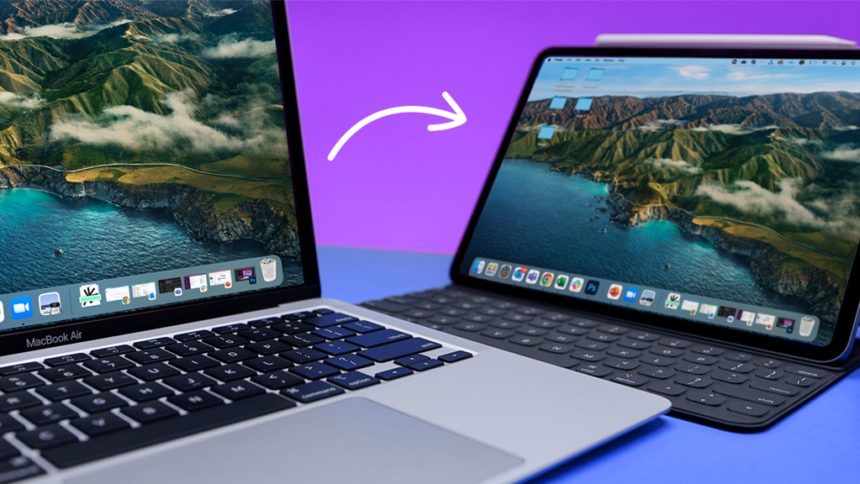
If you’re tired of working with a single screen and want to increase your productivity without breaking the bank, consider turning your old iPad into a perfect second monitor. As of 2026, there are several apps available that can help you achieve this with minimal setup and cost.
The primary app for this purpose is Duet Display, which allows you to use your iPad as an extra display for your computer. Setting it up is straightforward: simply download and install the Duet Display app on both your iPad and computer, then follow the in-app instructions to connect the devices.
How to Set Up Your iPad as a Second Monitor
To get started with Duet Display, first ensure your iPad and computer are connected to the same Wi-Fi network. Then, launch the Duet Display app on your iPad and your computer, and the app will guide you through the pairing process.
Once connected, your iPad will function as a fully interactive second monitor. You can drag windows between your computer screen and the iPad, just as you would with a traditional dual-monitor setup. The app also supports touch input on the iPad, allowing you to interact with windows and applications on your computer directly from the iPad’s screen.
Benefits of Using an iPad as a Second Monitor
Using an old iPad as a second monitor offers several benefits. Firstly, it’s an environmentally friendly way to repurpose an old device that might otherwise end up in a landfill. Secondly, it’s cost-effective; instead of spending money on a new monitor, you can utilize a device you already own.
Furthermore, the portability of an iPad means you can easily move your second monitor around your workspace or even use it in different locations, offering more flexibility than a traditional monitor. This can be particularly useful for presentations or when working in collaborative environments.
Alternatives and Considerations
While Duet Display is a popular choice for turning an iPad into a second monitor, there are other apps available that offer similar functionality, such as Splashtop Wired XDisplay and ApowerMirror. Each has its own set of features, pricing, and system requirements, so it’s worth exploring these alternatives to find the one that best suits your needs.
The Bottom Line
In conclusion, turning your old iPad into a second monitor is a practical and efficient way to enhance your productivity and make the most out of your devices. With the right app, setup is quick and easy, and the benefits in terms of screen real estate and flexibility are significant. Whether you’re a professional looking to optimize your workflow or a student seeking to improve your study environment, repurposing an iPad as a second monitor is definitely worth considering.



