If you’re tired of feeling like every website knows what you had for breakfast, you’re not alone. Your browser tracks you everywhere, collecting data on your habits, preferences, and even your location. This article is for anyone who wants to take back control of their digital footprint. We’ll show you exactly how to prevent browser tracking and secure your online privacy, with practical steps you can implement today in 2024.
Why This Matters
The pervasive nature of browser tracking isn’t just about annoying personalized ads, though that’s certainly a part of it. It’s about a vast, often opaque, industry that builds comprehensive profiles of you based on your online behavior. This data can be used for everything from targeted marketing to influencing political opinions, or even determining your eligibility for loans and insurance. The more data that’s collected, the higher the risk of that data being compromised in a breach, exposing your personal information to malicious actors. Preventing online tracking helps protect your identity and ensures your digital life remains your own.
How Your Browser Tracks You
Before you can stop it, it helps to understand how browser tracking actually works. It’s not just one thing; it’s a combination of sophisticated technologies working in concert.
Cookies: The Original Trackers
Cookies are small text files websites store on your device. They remember things like your login status, shopping cart items, and site preferences. First-party cookies are generally benign, helping the site function. Third-party cookies, however, are placed by other domains (like advertisers) and follow you across multiple websites to build a profile of your browsing history.
Browser Fingerprinting: Beyond Cookies
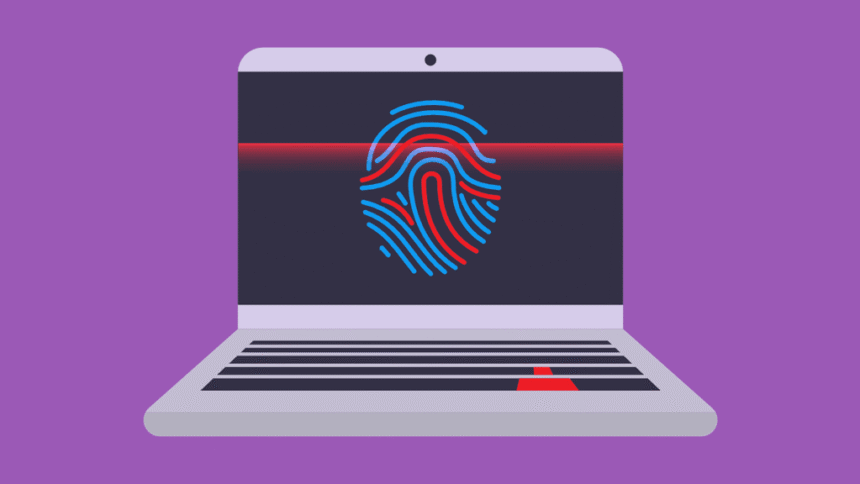
Even if you block cookies, you can still be tracked. Browser fingerprinting is a technique that identifies you by combining unique characteristics of your device and browser. This includes your operating system, browser version, installed fonts, screen resolution, plugins, and even how your device renders graphics. When combined, these data points create a unique “fingerprint” that can identify you with remarkable accuracy, making it incredibly difficult to prevent online tracking.
Pixels and Trackers: Invisible Spies
Many websites embed tiny, invisible images called tracking pixels or web beacons. When your browser loads these pixels, it sends information back to the server, confirming you viewed a page or opened an email. These are often used by analytics services and advertisers to monitor user engagement and track conversions.
Practical Steps to Stop Browser Tracking
Ready to fight back? Here are actionable steps you can take right now to limit browser tracking and enhance your privacy.
1. Adjust Your Browser’s Privacy Settings
Most modern browsers offer built-in privacy controls. You just need to know where to look.
For Google Chrome:
- Open Chrome and go to the three-dot menu in the top right.
- Select Settings > Privacy and security.
- Click on Third-party cookies and choose Block third-party cookies. This is a crucial step to block browser tracking.
- Optionally, explore Site Settings to review and manage permissions for individual sites.
For Mozilla Firefox:
- Open Firefox and click the three-line menu in the top right.
- Select Settings > Privacy & Security.
- Under Enhanced Tracking Protection, choose Strict. This blocks a wider range of trackers, cookies, and fingerprinting scripts.
- You can also manage Cookies and Site Data to clear data or block all third-party cookies.
2. Install Privacy-Focused Browser Extensions
Browser extensions can significantly bolster your defenses against tracking.
uBlock Origin: This is a powerful, open-source content blocker that stops ads, trackers, and malware domains. It’s highly configurable and very efficient.
- Go to your browser’s extension store (e.g., Chrome Web Store or Firefox Add-ons).
- Search for “uBlock Origin” and click Add to Chrome or Add to Firefox.
- Confirm the installation. It works automatically in the background.
Get uBlock Origin (affiliate link).
Privacy Badger: Developed by the EFF, Privacy Badger automatically learns to block invisible trackers. It sends Do Not Track signals and removes tracking cookies.
- Search for “Privacy Badger” in your browser’s extension store.
- Install it. It will start identifying and blocking trackers as you browse.
Get Privacy Badger (affiliate link).
DuckDuckGo Privacy Essentials: This extension blocks trackers, encrypts connections, and rates website privacy.
- Install “DuckDuckGo Privacy Essentials” from your browser’s store.
- It provides a privacy grade for each site you visit.
Get DuckDuckGo Privacy Essentials (affiliate link).
3. Embrace Privacy-Focused Browsers
While you can harden Chrome or Firefox, some browsers are built with privacy as their core principle.
Brave Browser: Brave automatically blocks ads and trackers by default, leading to faster loading times and better privacy. It also offers a built-in VPN and Tor integration for advanced privacy.
- What you get: Automatic ad/tracker blocking, faster browsing, built-in crypto wallet, rewards for viewing privacy-respecting ads (optional).
- What you’re missing: May break some older websites due to aggressive blocking.
How to use it:
- Download Brave from their official website.
- Install it like any other application.
- Import your bookmarks and settings from your old browser.
- Start browsing; the privacy features are enabled by default.
Get Brave Browser (affiliate link).
Mozilla Firefox (with hardening): While not privacy-first out-of-the-box like Brave, Firefox is open-source, highly customizable, and with the right settings and extensions, can be made very private.
- What you get: Open-source transparency, extensive customization, strong community support, excellent extension ecosystem.
- What you’re missing: Default settings aren’t as private as Brave’s; requires manual configuration.
How to use it:
- Download and install Firefox from Mozilla’s website.
- Go to Settings > Privacy & Security and set Enhanced Tracking Protection to Strict.
- Install recommended privacy extensions like uBlock Origin and Privacy Badger.
Get Mozilla Firefox (affiliate link).
4. Use a Virtual Private Network (VPN)
A VPN encrypts your internet connection and masks your IP address, making it much harder for websites and internet service providers (ISPs) to track your location and browsing activity. It’s a fundamental tool for online privacy.
- How it helps: Hides your real IP address, encrypts your data, bypasses geo-restrictions.
How to use it:
- Choose a reputable VPN service (e.g., NordVPN, ExpressVPN).
- Download and install their application on your devices.
- Open the app, log in, and connect to a server location.
- All your internet traffic will now be routed through the VPN.
Get NordVPN (affiliate link).
Get ExpressVPN (affiliate link).
5. Switch to a Private Search Engine
Google, while convenient, tracks your search history. Private search engines don’t.
DuckDuckGo: This search engine prides itself on not tracking your searches or personal information. It’s a direct way to stop browser tracking via search queries.
- How to use it: Simply go to duckduckgo.com or set it as your default search engine in your browser settings.
Alternatives and Pro Tips
Alternatives for Extreme Privacy
- Tor Browser: For maximum anonymity, Tor Browser routes your internet traffic through multiple relays, making it extremely difficult to trace. It’s slower but offers unparalleled privacy. Best for sensitive browsing.
- Using a guest profile or incognito mode: While not a perfect solution, browsing in a guest profile or incognito/private mode prevents your browser from saving local history and cookies for that session. It won’t stop online tracking by websites themselves, but it helps keep your local browser clean.
Pro Tips for Power Users
- Regularly clear your cookies and site data: Even with protections, some cookies might slip through. Make it a habit to clear them periodically.
- Use container tabs (Firefox): Firefox’s Multi-Account Containers extension lets you isolate websites into different “containers.” This means Facebook, for example, can’t track your activity on other sites outside its container.
- Check privacy policies: Take a few moments to read the privacy policies of websites you frequent, especially before signing up for new services.
- Disable “Do Not Track” (DNT) in some cases: While DNT sounds good, many sites ignore it, and some privacy experts argue that sending a DNT signal can actually make your browser more unique, aiding fingerprinting. Consider disabling it if you’re already using strong blocking tools.
Limitations and The Real Downsides
While these steps significantly reduce browser tracking, achieving 100% anonymity online is incredibly difficult. Here are some trade-offs:
- Website Functionality: Aggressive blocking (especially with Strict settings or uBlock Origin) can sometimes break website layouts or functionality. You might need to temporarily disable protections for certain sites.
- Convenience: Blocking all third-party cookies might mean you have to log in to websites more frequently or lose some personalized settings.
- Speed: While ad blockers can speed up page loads, using a VPN can sometimes slightly slow down your connection due to encryption and server routing.
- Not a Silver Bullet: Even with all these measures, sophisticated entities can still attempt to track you through other means (e.g., social media logins, email tracking pixels outside the browser).
The Bottom Line
Taking control of your online privacy is an ongoing process, but these steps will dramatically reduce how your browser tracks you.
- For a quick and effective start, adjust your browser settings and install uBlock Origin (affiliate link) and Privacy Badger (affiliate link).
- If you’re serious about privacy, consider switching to Brave Browser (affiliate link) or a hardened Mozilla Firefox (affiliate link) setup.
- For comprehensive protection against ISPs and location tracking, a good VPN like NordVPN (affiliate link) or ExpressVPN (affiliate link) is essential.
- Always use DuckDuckGo for your searches.
Start with a few changes today, and you’ll immediately notice a difference in your online experience. Share your favorite privacy tips in the comments below!