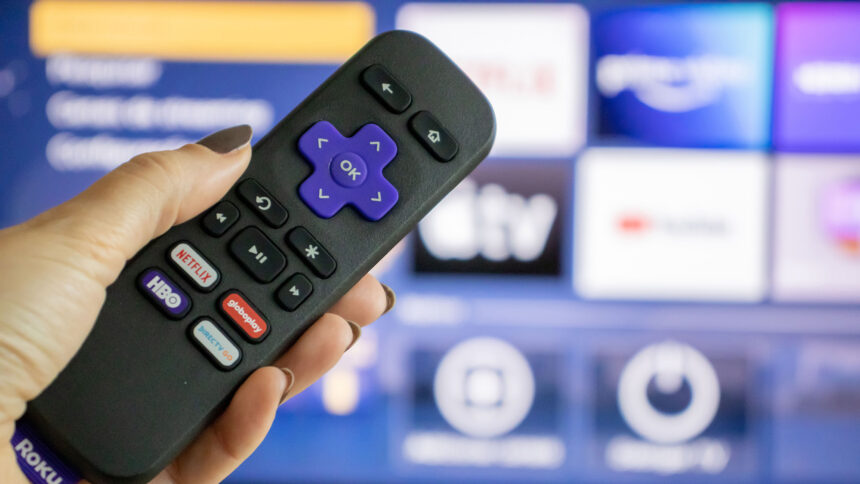
Most people treat Roku like a dumb HDMI dongle: plug it in, log into Netflix, and never touch the settings again. But Roku OS has quietly added smarter live TV, better sports discovery, private listening, mobile remote tricks, and even per‑channel audio/video tuning over the last few versions. When you combine those with a few “power user” habits—like optimizing Wi‑Fi and using hidden diagnostic screens—you can squeeze noticeably better quality and reliability out of the same hardware.
Below are practical, low‑effort tricks that will actually improve your day‑to‑day streaming, not just cosmetic tweaks you try once and forget.
1. Fix the Network First (Biggest Quality Boost for Free)
Roku is only as good as its connection. Most buffering, random resolution drops, or “channel won’t load” issues are network, not apps or the Roku itself.
Use 5 GHz Wi‑Fi if your router supports it
Roku devices that support dual‑band Wi‑Fi will perform better on 5 GHz: less interference, higher throughput, and less congestion than the crowded 2.4 GHz band.
- In your router, make sure the 5 GHz band has its own SSID (network name).
- On Roku: Settings → Network → Set up connection → Wireless → choose the 5 GHz network.
Position Roku and router intelligently
- Avoid hiding the Roku stick behind the TV if your router is in another room; the panel can attenuate signal.
- Place the router in an open, central area—not in a cabinet, not on the floor, not behind metal or concrete.
Use Roku’s built‑in network test
On Roku: Settings → Network → Check connection. Roku will show signal strength and internet status; “Excellent” or “Good” is what you want. If you see “Fair” or “Poor”:
- Move router closer or elevate it.
- Switch Roku from 2.4 GHz to 5 GHz.
- If all else fails, consider an Ethernet adapter (for Ultra models or compatible sticks).
2. Dial In Picture and Sound for Your TV and Room
Out‑of‑the‑box defaults are generic. A few minutes in settings can significantly improve clarity and audio balance.
Match Roku’s resolution to your TV
Roku usually auto‑detects, but it’s worth checking:
- Settings → Display type.
- Choose your TV’s native resolution (1080p, 4K HDR, etc.).
If streams look soft or your TV keeps flashing “resolution changed,” force the correct type instead of “Auto detect.”
Calibrate display size and overscan
Some TVs cut off the edges of the image (overscan). Use Roku’s built‑in display calibration to make sure the entire image is visible.
- Settings → Display type → Fine‑tune or “Calibrate” (varies by model).
- Follow the on‑screen guide until all arrows/boxes are fully visible.
Optimize audio for your setup
If you use a soundbar or AVR:
- Settings → Audio → HDMI → choose “Auto (Dolby, DTS)” or the format your receiver supports.
- Ensure “Surround sound” is enabled if you have a 5.1 setup.
For late‑night watching, enable:
- Volume leveling or Night mode (Options * while playing) to tame loud ads and explosions.
3. Use Roku OS 12 Features to Find More of What You Actually Watch
Recent Roku OS releases quietly added smarter live TV and discovery tools that reduce hunting around for what to watch.
Use the Live TV Zone and Local News
If you use The Roku Channel or an antenna input:
- From Home, go to the Live TV tile or Live TV Zone.
- Enable Local News to see channels tailored to your location, powered by AI recommendations.
This is especially useful for cord‑cutters who still want easy access to local stations without juggling multiple apps.
Try the Sports hub
Roku’s Sports experience aggregates games and streams from multiple services (NBA, MLB.TV, CBS Sports, NBC Sports, etc.) into one interface.
- Open the Sports row from the Home screen or What to Watch.
- Select your favorite teams and leagues so Roku can surface relevant live and upcoming games.
Use “Continue Watching” instead of hopping between apps
The OS 12 “Continue Watching” row in What to Watch shows in‑progress shows and movies from supported apps (Netflix, Max, Paramount+, Prime Video, Freevee, discovery+, etc.) so you can resume in one click instead of opening each app.
4. Turn Your Phone into a Super Remote (Keyboard, Private Listening, Guide)
The Roku mobile app (iOS/Android) is more than a backup remote—it fixes most of the annoyances of on‑screen navigation.
Use the full keyboard
Typing passwords or search terms with arrow keys is painful. The app gives you:
- A full QWERTY keyboard when a text field is active on your Roku.
- Paste from clipboard for long URLs or credentials.
Enable private listening without special hardware
If your Roku remote lacks a headphone jack, the app still lets you listen privately:
- Open the Roku app → Devices → select your Roku → Remote → tap the headphones icon.
- Audio routes through your phone; plug in wired headphones or use Bluetooth earbuds paired with the phone.
This is ideal for apartments, shared bedrooms, or late‑night watching.
One‑tap channel launch and Live TV Guide
The app shows all installed channels in a grid—tap to open instead of scrolling through the Home screen with the remote. Many devices also expose a “Guide” button in the app to jump directly into the Live TV Channel Guide.
5. Clean Up and Customize Your Home Screen
A cluttered grid of channels slows everyone down. Clean organization = fewer clicks.
Reorder and prune channels
On the Home screen:
- Move a channel: Highlight it → press * (star) → Move channel. Put your top 6–8 apps in the first row.
- Remove a channel: Highlight → * (star) → Remove channel.
Use folders and categories (where available)
Some recent Roku builds allow organizing channels into folders or categories to reduce visual noise. Group by:
- “Kids” vs “Grown‑ups”
- “Sports,” “Movies,” “Free TV”
- “Work” (YouTube, screen‑mirror, presentations)
Customize themes and screensavers
Beyond aesthetics, dynamic screensavers (like cityscapes, aquariums, or clocks) can make your TV double as ambient art or a status screen.
- Settings → Theme / Screensaver to browse, install, and tune how quickly it activates.
6. Use Hidden Shortcuts and Diagnostic Menus to Fix Problems Faster
Roku has a set of “secret screens” accessed by specific button sequences. These are great for troubleshooting Wi‑Fi, HDMI, or performance issues.
Examples (press in order on the Roku remote):
- Wireless info screen:
Home ×5 → Up → Down → Up → Down → Up
Shows signal strength, connection type, and detailed wireless diagnostics. - HDMI info screen:
Home ×5 → Down → Left → Up ×3
Displays resolution, refresh rate, and HDMI handshake details—useful when diagnosing 4K/HDR issues. - Quick system restart (no menu digging):
Home ×5 → Up → Rewind ×2 → Fast Forward ×2 triggers reboot.
Use these instead of blindly power‑cycling everything when something looks off.
7. Get the Most Out of Your Hardware: Local Media, Casting, and Mirroring
Roku isn’t just for streaming apps—you can also use it as a front‑end for your own media and devices.
Stream your own library with Plex or similar apps
Install Plex (or Emby/Jellyfin) on both your Roku and a PC/NAS, then:
- Point Plex server at your Movies/Music/Photos folders.
- Use the Plex Roku channel to browse and stream your own collection on the TV.
Use screen mirroring and casting
Most modern Roku devices support casting from mobile apps and mirroring from phones or laptops:
- Ensure both Roku and device are on the same Wi‑Fi network.
- On Android or Windows, use Screen Cast / Miracast; on iOS, use AirPlay (if supported by your Roku model).
- Many apps (YouTube, Netflix, etc.) have a built‑in cast icon to send video directly to Roku.
This is ideal for presentations, showing photos, or using apps that don’t have native Roku versions.
8. Keep Roku Fast: Cache, Updates, and When to Reset
Over time, any streaming box can feel sluggish. Simple maintenance prevents most slowdowns.
Clear cache periodically
Temporary data can pile up and affect performance.
- Settings → System → Advanced system settings → Clear cache (or use the secret code on some models).
- Reboot after clearing.
Keep firmware up to date
New Roku OS versions add features (like improved sports hub, Local News, Continue Watching) and performance fixes.
- Settings → System → System update → Check now.
Know when to factory reset
If you’ve tried everything—cleared cache, rebooted, updated—and things are still broken:
- Settings → System → Advanced system settings → Factory reset.
- You’ll need to sign back into all services, but you get a clean slate and often a “new” feel.
9. Use Guest Mode and Subscription Management for Households and Airbnb
If you host guests or rent out your place, you can make Roku friendlier and safer.
Enable Guest Mode
Guest Mode lets visitors sign into their own streaming accounts and automatically signs them out on a set date.
- On the Home screen: highlight your profile icon or settings → Guest Mode → Turn on.
- Set checkout date so logins clear automatically.
Centralize and audit subscriptions
Roku’s account portal shows subscriptions billed through Roku in one place—helpful to avoid forgotten charges.
- On a browser: go to my.roku.com → sign in → My subscriptions.
- Cancel services you no longer use; set email alerts before renewals.
10. Combine Small Tweaks for a Big Upgrade
Individually, each of these changes is minor: moving one channel, switching Wi‑Fi bands, enabling private listening. Together, they transform Roku from “just another HDMI stick” into a tuned, family‑friendly streaming hub:
- Network stable and fast (5 GHz + good placement + diagnostics).
- Picture and sound matched to your actual TV and room.
- Content discovery centered around how you watch (Sports hub, Local News, Continue Watching).
- Remote and app working together (keyboard, private listening, Guide).
- Local media and mirroring integrated instead of stuck on your laptop.
You don’t need to upgrade hardware or add yet another streaming box. Spend 20–30 minutes going through these tricks once, and you’ll feel the difference every night you hit Play.