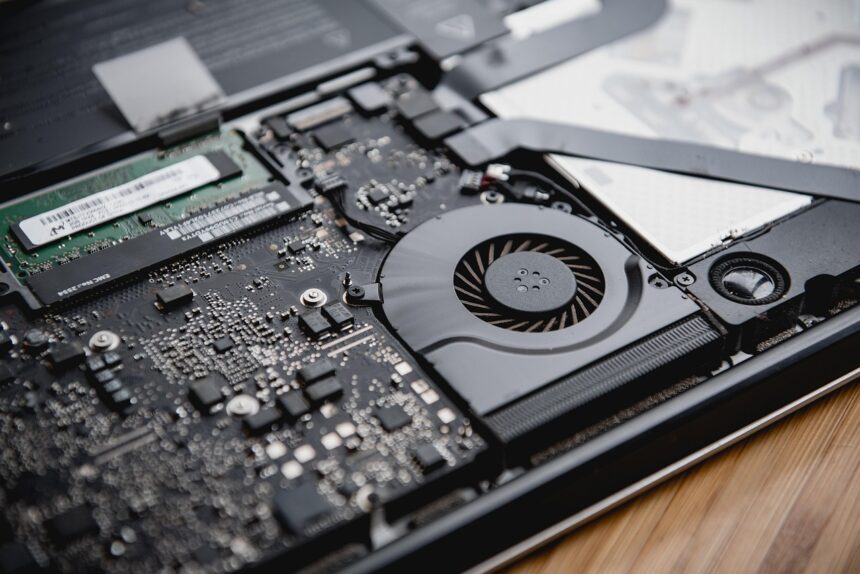
If you’re like most professionals, you spend a lot of time working on your laptop, and there’s one thing that can be really distracting: loud laptop fans. Not only can they be annoying, but they can also be a sign that your laptop is working too hard and might be at risk of overheating. By taking a few simple steps, you can quiet your laptop fans down and improve your overall computing experience.
Why Loud Laptop Fans Matter
Loud laptop fans can be more than just a nuisance – they can also be a sign of a larger problem. When your laptop’s fans are working too hard, it can cause your laptop to overheat, which can lead to reduced performance, shortened battery life, and even damage to your laptop’s internal components. By quieting your laptop fans, you can help prevent these problems and keep your laptop running smoothly.
Check for Dust and Debris
One of the most common causes of loud laptop fans is dust and debris buildup. When dust and debris accumulate inside your laptop, it can block airflow and cause your fans to work harder, leading to louder noise. To fix this, you can try cleaning out your laptop’s vents and fans with a soft brush or a can of compressed air. You can also use a tool like Corsair to help remove dust and debris.
Update Your Laptop’s BIOS
Outdated BIOS settings can also cause your laptop fans to run louder than they need to. By updating your laptop’s BIOS, you can ensure that your fans are running at the optimal speed for your laptop’s temperature. You can usually find BIOS updates on your laptop manufacturer’s website, such as Dell or HP.
Use a Laptop Cooling Pad
A laptop cooling pad can be a great way to help keep your laptop cool and quiet. These pads usually have built-in fans that help to circulate air and keep your laptop at a safe temperature. You can find laptop cooling pads from a variety of manufacturers, including Thermaltake. By using a laptop cooling pad, you can help reduce the strain on your laptop’s fans and keep them running quieter.
Monitor Your Laptop’s Temperature
Finally, it’s a good idea to monitor your laptop’s temperature to make sure it’s running within a safe range. You can use a tool like HWiNFO to monitor your laptop’s temperature and adjust your settings accordingly. By keeping an eye on your laptop’s temperature, you can help prevent overheating and keep your fans running quietly.
Some other tools you can use to quiet your laptop fans include SpeedFan and Notebook FanControl. These tools allow you to adjust your fan speeds and monitor your laptop’s temperature, giving you more control over your laptop’s cooling system.
In addition to these tools, you can also try adjusting your power settings to reduce the strain on your laptop’s fans. By reducing your laptop’s performance or turning down the brightness, you can help reduce the heat generated by your laptop and keep your fans running quietly. Other secondary keywords to consider include laptop maintenance, computer cooling, and noise reduction.