



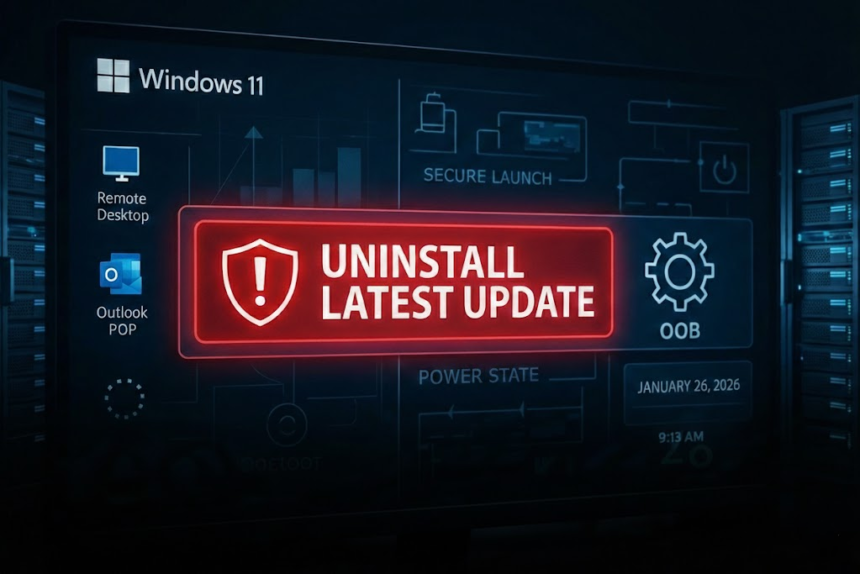
Usually, we’re the first to tell you to smash that “Check for Updates” button to keep your PC secure. But this time? Microsoft is actually asking you to do the opposite.
The January update for Windows 11 (KB5074109), released on January 13, has turned out to be a bit of a disaster. From breaking Outlook to triggering the dreaded “black screen,” this patch is doing more harm than good. If your PC has been acting possessed lately, here is what’s going on and how to fix it.
Outlook is the Biggest Victim
The most widespread issue hits users who rely on Outlook with POP accounts and local PST files. If those files are stored in cloud-synced folders (like OneDrive or Dropbox), Outlook is essentially unusable. Symptoms include:
- The app hanging or showing “Not Responding.”
- Failure to close properly.
- Infinite loops of re-downloading the same emails.
The temporary fix: Microsoft suggests switching to the web version of Outlook for now or moving your PST files to a strictly local folder that doesn’t sync to the cloud.
It’s Not Just Email
Unfortunately, the bugs don’t stop at your inbox. Users are reporting a laundry list of system-wide headaches:
- The Black Screen: Some users are greeted by total darkness instead of their login screen.
- File Explorer Crashes: The “Explorer.exe” process is hanging, especially when trying to access cloud storage.
- Desktop Resets: Your carefully organized icons and wallpaper might suddenly revert to default.
The Dilemma: Security vs. Stability
Here is the catch—and it’s a big one. Microsoft admits that if the manual fixes don’t work, you should uninstall the KB5074109 update entirely.
However, doing so is a double-edged sword. This patch included over 100 security fixes. By rolling it back, you’re trading a buggy system for a potentially vulnerable one. It’s a “pick your poison” scenario that no user wants to be in.
How to Roll Back the Update
If your PC is currently unusable, here is how to get back to a stable version:
- Open Settings > Windows Update.
- Go to Update history > Uninstall updates.
- Find KB5074109 in the list and click Uninstall.
- Restart your computer.
Pro Tip: If you uninstall the patch, make sure you are extra cautious with suspicious links and downloads until Microsoft releases a “clean” version of these security fixes.
Microsoft has already pushed out some “out-of-band” fixes for Remote Desktop and system shutdown bugs, but a total fix for the Outlook and File Explorer issues is still “in the works.” Stay tuned, and maybe hold off on that manual update check for a few days.


