Tonkeeper is a non-custodial cryptocurrency wallet designed exclusively for The Open Network (TON) blockchain. It allows you to securely store, send, receive, and trade Toncoin and other TON-based tokens. The key advantage is that you—not the wallet provider—control your private keys and funds. This means you have full ownership and responsibility for your assets.
Key Features:
- Non-custodial wallet: Only you control your private keys
- Low fees: TON blockchain offers transaction fees significantly lower than Ethereum or Bitcoin
- Fast transactions: Confirmed within seconds
- No registration required: Just generate a recovery phrase and start using it
- Multi-token support: Store Toncoin, USDT, NFTs, and other TON-based assets
- DeFi integration: Interact with decentralized applications on TON
Why Download APK Directly?
APK files are Android application packages—essentially the installation files for Android apps. You might need to download Tonkeeper’s APK directly instead of using Google Play Store for several reasons:
- Geographic restrictions: Some regions don’t have access to Tonkeeper on Play Store
- Earlier access: Get the latest version before it’s rolled out globally
- Device compatibility: Install on devices that don’t support certain Play Store requirements
- Alternative app stores: Use third-party Android stores like Uptodown or APKMirror
However, downloading APKs from untrusted sources carries security risks. This guide ensures you can do it safely.
The Security Risk: What You Need to Know
Before downloading any APK, understand the primary threat:
Man-in-the-Middle (MITM) Attacks: A malicious actor could intercept your download and replace the legitimate APK with a modified version containing malware. A fake Tonkeeper could steal your recovery phrase—the 12 or 24-word sequence that grants complete access to your wallet.
Real-world example: In February 2025, Socket Security discovered a malicious npm package called ‘@ton-wallet/create’ that had been stealing mnemonic phrases for six months before detection. While this was a developer package, it illustrates the sophistication of attacks targeting TON users.
The solution: Verify the APK’s cryptographic signature before installation.
Step 1: Download from Trusted Sources Only
Recommended APK Download Sources:
1. Google Play Store (Most Secure)
Visit Google Play and search for “Tonkeeper”. Tap “Install” to download and install directly. This is the safest method because Google verifies apps before distribution. The drawback: may not be available in all regions.
2. Official Github account of Tonkeeper
3. APKMirror (Highly Trusted)
- URL: https://www.apkmirror.com/apk/ton-apps-inc/tonkeeper/
- Run by the team behind Android Police (reputable tech publication)
- APKs are extracted directly from Play Store and remain untouched
- All signatures remain intact—you can safely install updates from Play Store later
4. Uptodown (Secondary Option)
- URL: https://tonkeeper.ru.uptodown.com/android
- Alternative APK distributor with user reviews
- Less rigorous verification than APKMirror, but still generally reliable
- URL: https://tonkeeper.en.aptoide.com/app
- Decentralized app store with community uploads
- Lower security guarantee than above options
Which Source to Choose?
| Source | Security | Availability | Speed | Recommendation |
|---|---|---|---|---|
| Google Play Store | ⭐⭐⭐⭐⭐ | Limited by region | Fast | BEST if available |
| APKMirror | ⭐⭐⭐⭐⭐ | Worldwide | Fast | RECOMMENDED for most users |
| Uptodown | ⭐⭐⭐⭐ | Worldwide | Fast | Good alternative |
| Aptoide | ⭐⭐⭐ | Worldwide | Medium | Last resort only |
Step 2: Verify APK Signature (Advanced Security)
This step ensures the APK hasn’t been modified since the developer signed it. It’s the most reliable security check you can perform.
What is an APK Signature?
Each legitimate app is signed with a cryptographic key. This is like a digital fingerprint—any modification to the app will invalidate the signature. You can verify this signature using Android SDK tools.
Method A: Simple Signature Check (Using File Manager)
Tools needed: MiX File Manager (free version on XDA) or similar.
Steps:
- Download the APK to your Android device
- Install a file manager that shows certificate information (MiX File Manager, ES File Explorer)
- Long-press the APK file and select “Properties” or “Details”
- Look for certificate information:
- Certificate subject should show developer information
- Look for checksum/hash (MD5, SHA256)
- Compare with a known-good version:
- Install Tonkeeper from Google Play Store on another device or account
- Extract that APK’s certificate hash
- Compare the hashes—they must match exactly
Method B: Professional Verification (Using Command Line)
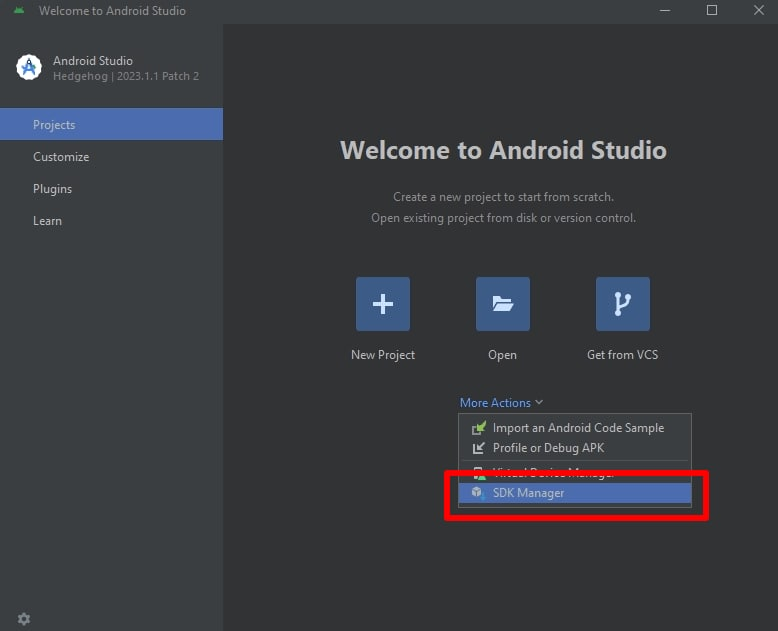
If you’re comfortable using command-line tools, this is the most thorough method.
Prerequisites:
- Android SDK Build Tools (minimum v24.0.3)
- A computer with Android Studio or command-line tools installed
Steps:
# Navigate to the build-tools directory
cd /path/to/android/sdk/build-tools/35.0.0

# Verify the APK signature
./apksigner verify -v --print-certs /path/to/tonkeeper.apk
What to look for in the output:
Verifies
Verified using v1 scheme (JAR signing): true
Verified using v2 scheme (APK Signature Scheme v2): true
Verified using v3 scheme (APK Signature Scheme v3): true
Number of signers: 1
Signer #1 certificate DN: CN=Ton Apps Inc, ...
All three verification schemes should return “true”. If any shows “false,” the APK has been tampered with—do not install it.
Method C: Web-Based Signature Checker (Easiest)
Google’s Binary Transparency project provides online verification tools:
- Visit: https://developers.google.com/android/binary_transparency
- Upload your APK
- The tool verifies the signature against Google’s transparency log
- If verification passes, the APK is legitimate
Limitation: Only works for APKs officially distributed by the developer through Play Store channels.
Step 3: Safe Installation on Your Device
Before Installing:
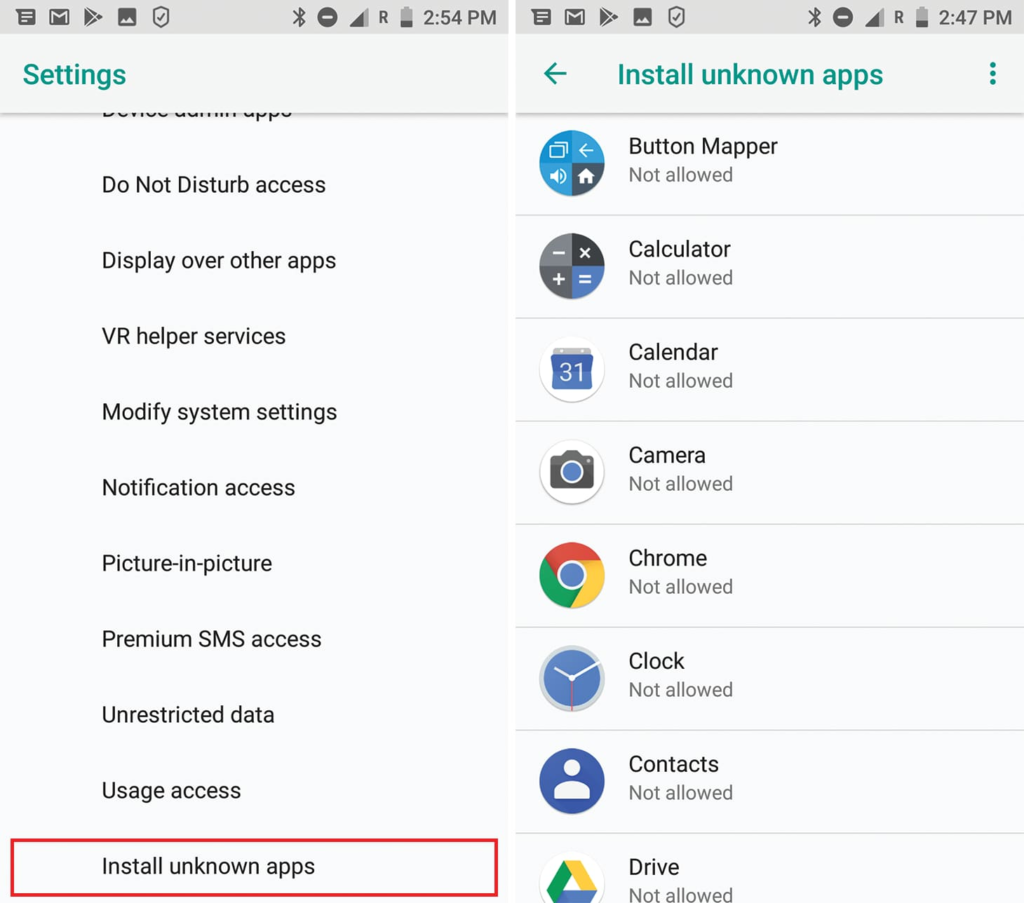
- Enable “Unknown Sources”:
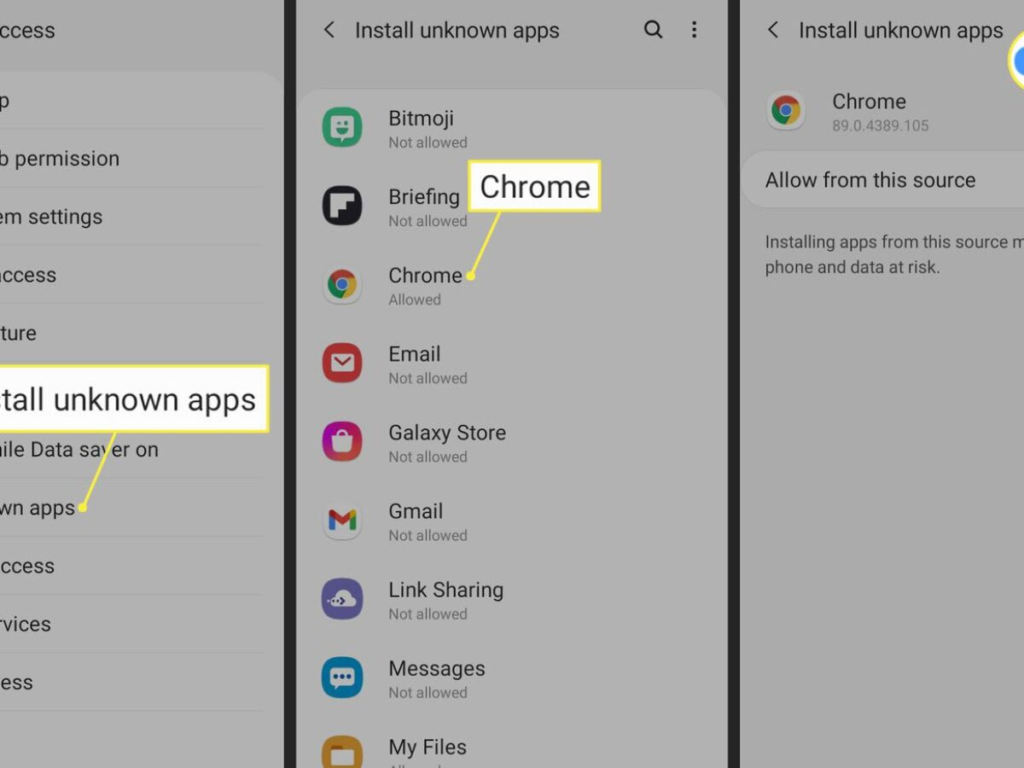
- Go to Settings → Security
- Enable “Install unknown apps” or “Unknown sources” (varies by Android version)
- Warning: This is a security risk—only enable temporarily
- Disable Unknown Sources After Installation:
- Once Tonkeeper is installed, return to Settings → Security
- Turn off “Unknown sources”
- This prevents accidental installation of malicious apps
- Use an Updated Android Version:
- Tonkeeper requires Android 7.0 or higher
- Ideally use Android 10+ for enhanced security features
- Keep your OS updated with the latest security patches
Installation Steps:
- Download the APK from one of the recommended sources above
- Locate the downloaded file in your device’s file manager (usually in Downloads folder)
- Tap the APK file to open the installation prompt
- Review permissions:
- Tonkeeper should request: Camera (for QR code scanning), Network access, File storage
- Reject any suspicious permission requests
- Tap “Install” and wait for completion
- Launch Tonkeeper once installation finishes
Step 4: Secure Your Tonkeeper Wallet
Once installed, follow these critical security practices:
1. Write Down Your Recovery Phrase
When you first launch Tonkeeper, it generates a 12 or 24-word recovery phrase. This is your master key—it grants access to all funds in your wallet.
What to do:
- Write it down on paper in order
- Store in a secure location (safe, vault, or hidden location)
- Never photograph it or store it digitally
- Never share it with anyone—not even Tonkeeper support
Why it’s critical: If your phone is lost or stolen, the recovery phrase is the ONLY way to restore your wallet. If someone gets this phrase, they can access all your funds.
2. Set Up Access Security
Tonkeeper supports multiple authentication methods:
- PIN Code: 4-6 digit code required to open the wallet
- Biometric Authentication: Fingerprint or face recognition
- Pattern Lock: Draw a pattern to unlock (less secure than PIN)
Best practice: Use both PIN and biometrics for maximum security.
3. Enable Notifications for Transactions
- Turn on alerts for outgoing transactions
- This helps detect unauthorized access attempts
4. Never Connect to Unverified Apps
Tonkeeper integrates with TON’s DeFi ecosystem. However:
- Only connect to verified apps within Tonkeeper’s interface
- Never manually approve transactions on unknown websites
- Always verify transaction details before confirming
- Watch out for “dust attacks”: Spammers may send worthless tokens to your wallet with links to malicious sites. Ignore them
5. Protect Your Phone
- Use a strong device PIN/password
- Enable automatic locking (5-10 minutes)
- Keep your OS and apps updated
- Use antivirus software if available
- Avoid public WiFi when accessing your wallet
Common Security Mistakes to Avoid
Troubleshooting Common Issues
“Installation Blocked” Error
Cause: Your device doesn’t allow unknown app sources
Solution:
- Go to Settings → Apps → Special app access → Install unknown apps
- Select your file manager app
- Enable “Allow from this source”
- Try installing again
APK Won’t Install After Download
Cause: File may be corrupted or incomplete
Solution:
- Delete the downloaded APK
- Re-download from the same source
- Verify the file size matches the source listing
- Check your device has sufficient free storage (at least 500MB)
“App Not Installed” Message
Cause: APK version incompatible with your Android OS
Solution:
- Check your Android version: Settings → About Phone → Android Version
- Tonkeeper requires Android 7.0 minimum
- If you have an older device, consider upgrading your OS or device
Signature Verification Fails
Cause: APK has been modified or is from an unauthorized source
Solution:
- Do NOT install the app
- Delete the APK file
- Download fresh from APKMirror or Google Play Store
- Check your internet connection wasn’t compromised during download
Updates: Keeping Tonkeeper Secure
If Installed from Google Play Store:
- Updates download automatically
- No action needed on your part
- Always accept security updates immediately
If Installed from APKMirror or Other Source:
- Check APKMirror regularly for new versions
- Download the latest APK following this guide
- Install the update—it will replace the old version if signature matches
- Important: The signature MUST match your installed version, or updates will fail (this is a security feature)
Summary: Your Safe APK Download Checklist
Before Download:
- Choose a trusted source (Google Play > Github > APKMirror > Uptodown)
- Check you have 500MB+ free storage
- Ensure your Android version is 7.0 or higher
During Download:
- Download from the official source URL only
- Don’t download over public WiFi
- Verify the file size matches the source
Before Installation:
- Verify the APK signature (Method A, B, or C)
- Enable “Unknown sources” temporarily
- Review app permissions carefully
After Installation:
- Write down your recovery phrase on paper
- Disable “Unknown sources” immediately
- Set PIN and biometric lock
- Enable transaction notifications
- Test a small transaction first
Ongoing:
- Never share your recovery phrase
- Only connect to verified TON apps
- Keep your device and OS updated
- Use antivirus software
Conclusion
Downloading Tonkeeper APK safely requires attention to detail but isn’t complicated. The key principles are:
- Use trusted sources (APKMirror as primary choice)
- Verify signatures when possible
- Secure your recovery phrase immediately
- Enable device security features
Installing unknown apps in Android: a safety guide
By following this guide, you’ll enjoy Tonkeeper’s non-custodial wallet benefits while protecting your cryptocurrency from theft or loss. Remember: in the decentralized world, security is your responsibility—there’s no “forgot password” button for a blockchain wallet.
Stay safe, and welcome to the TON ecosystem.