



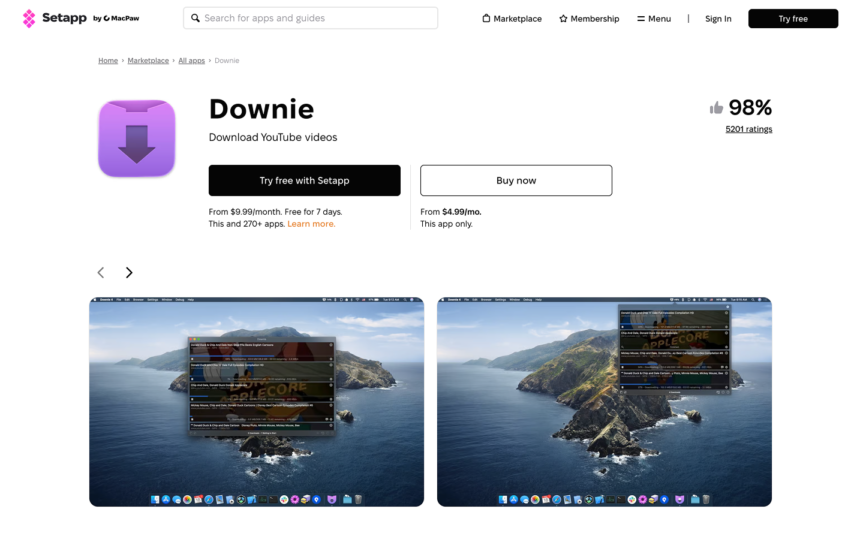
If you’ve ever watched a video online only to wish you could save it locally—so you can re‑watch, re‑listen, or reuse it without spotty Wi‑Fi or buffering — Downie is the app you’ve been waiting for. On macOS, Downie 4 stands out as one of the most polished, feature‑rich video downloaders, quietly pulling high‑definition content from thousands of sites, converting formats, and even letting you batch‑download entire playlists. As of 2026, Downie remains a go‑to tool for Mac users who want to manage their own video library outside of browsers and streaming platforms. Whether you’re saving YouTube tutorials, Vimeo reels, or Instagram clips, Downie turns the “is there an easy way to download this?” moment into a simple drag‑and‑drop operation.
Why this matters
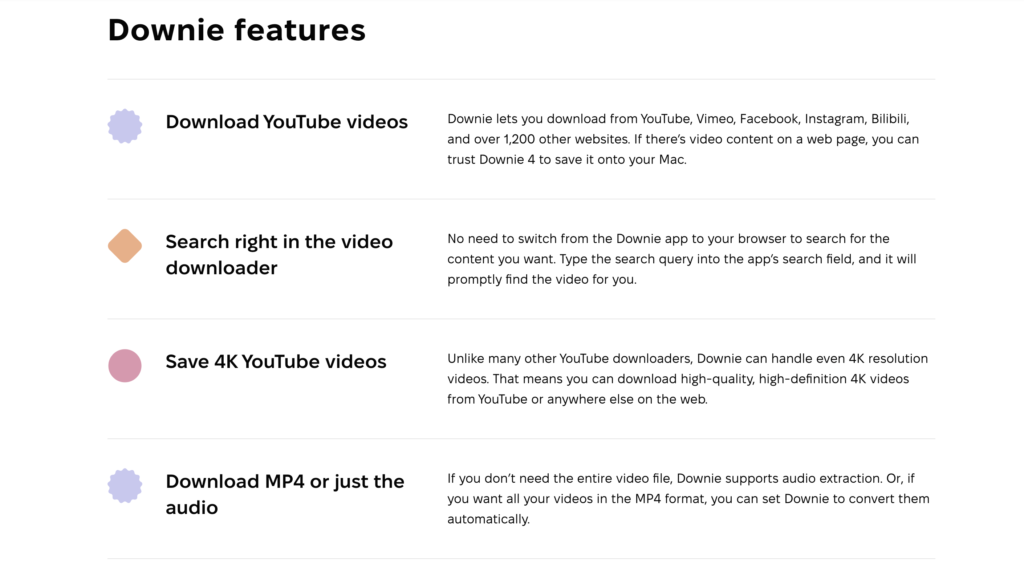
Streaming sites are built to keep you inside their ecosystem, constantly buffering and loading new recommendations. When you want to watch something offline, the options are limited: reposts via third‑party tools, browser extensions that don’t always work, or manual screen recordings that sacrifice quality. Downie changes that by giving you a universal, macOS‑native downloader that works across 1,200+ websites, including YouTube, Vimeo, Instagram, Facebook, Bilibili, and many others. That means you can save learning materials, vlogs, music‑video clips, or any public video to your Mac in a format you control, instead of relying on connection‑dependent streaming. For travelers, offline‑only environments, or people who just hate stuttering video, that local copy is invaluable.
Beyond convenience, Downie also helps you manage quality and organization. You can download videos up to 4K and save them in MP4, MOV, or other formats, or even extract just the audio as MP3. With customizable naming schemes, metadata‑export options, and a clean interface, it’s easy to build a coherent offline library instead of a chaotic folder of “untitled” downloads. For creators and educators, this is also useful for archiving reference material, building media libraries, or pre‑loading content for training sessions or presentations that don’t depend on internet connectivity.
How Downie works on macOS
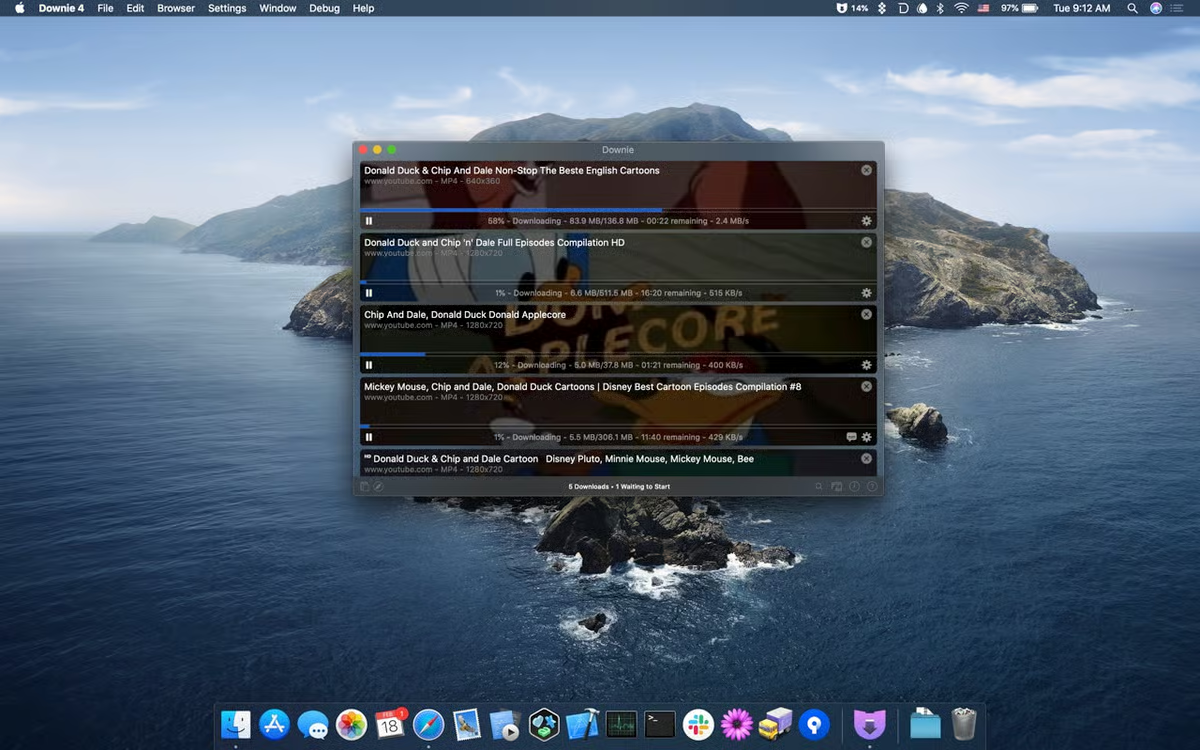
Downie is built specifically for macOS, and it feels like a native Mac app rather than a web‑based utility. The core workflow is simple: you drag a video URL from your browser onto the Downie window (or its Dock icon), and the app analyzes the page, lists available video‑quality options, and adds the download to its queue. You can then adjust resolution, format, and destination before hitting Start. Downie 4 also supports a built‑in browser and search field, so you can find and queue videos without switching apps, and its download manager lets you pause, resume, reorder, or cancel individual items.
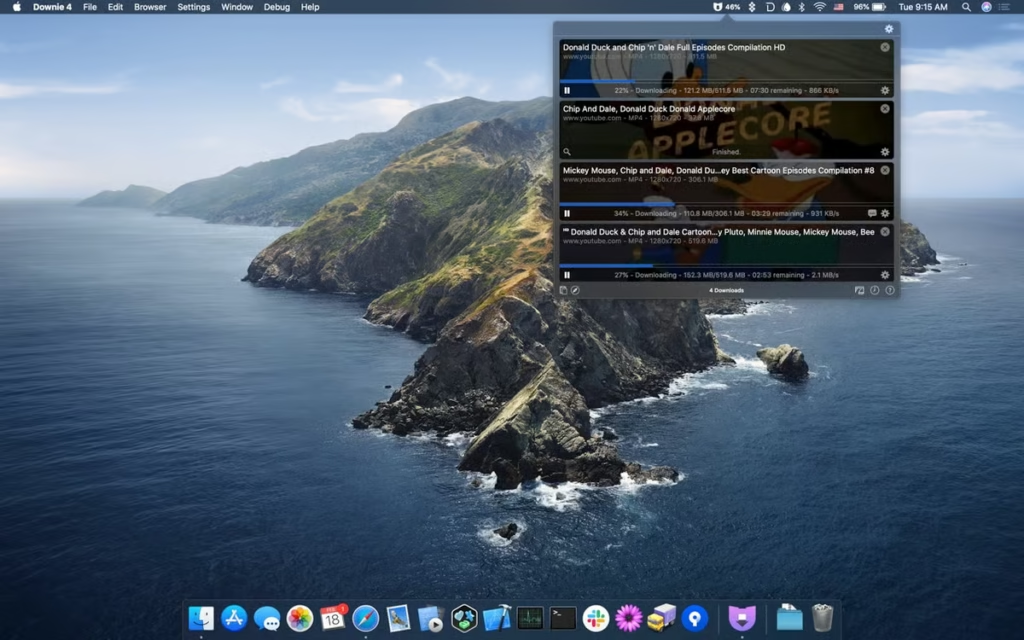
Under the hood, Downie uses a constantly updated list of supported sites (over 1,000, and growing), so as platforms change their delivery methods, the app keeps pace. When you download a YouTube video, for example, it can grab up to 4K resolution if the source provides it, and separate audio tracks if you want to create a clean MP3. Batch‑download features allow you to drop an entire playlist link, and Downie will queue each video automatically, saving you from manually copying every single URL. For power users, the app also offers user‑guided extraction (UGE) presets, custom naming schemes, and metadata export to JSON, which lets you plug downloaded videos into other tools such as media managers or scripting pipelines.
Key features that make Downie “ultimate”
Downie is not just a YouTube downloader; it’s a full‑fledged video downloader and manager that leans heavily into macOS‑specific conveniences:
- Broad site support
Downie supports over 1,200 sites, including YouTube, Vimeo, Instagram, Facebook, Bilibili, Youku, and many niche platforms. That universality means you can treat it as a one‑stop shop for almost any video you want to save, rather than juggling multiple grabbers. - 4K and high‑quality options
If the source offers 4K, Downie can grab it, which is a big win over simpler tools that cap at 1080p or 720p. You can also choose lower resolutions to save bandwidth and disk space, depending on your needs. - Audio extraction and format conversion
For people who only care about the soundtrack—music, podcasts, interviews—Downie can extract audio into MP3 or other formats. It can also convert video to MP4, AVI, or MOV, which is useful if you need a specific codec for editing or sharing. - Download Queue and batch support
Add links to the queue and walk away. The app can handle multiple videos at once, prioritizing them as you configure. Batch‑downloading playlists or search results via a single URL saves time and reduces repetitive work. - Custom naming and metadata
You can set up custom naming patterns (e.g.,{title} - {site} - {date}) so every downloaded file is automatically organized. For advanced users, metadata from each video can be exported to a JSON file, enabling scripting, tagging, or integration with external tools. - Speed and reliability improvements in v4
Downie 4 is noticeably faster than previous versions; YouTube videos can be prepared for download up to six times faster than in Downie 3, with more stable handling of large queues and complex sites. Cancellation, priority flags, and forced‑MP4 options add fine‑grained control over the process.
How to use Downie effectively
To get the most out of Downie, you should treat it as a pipeline, not just a one‑off downloader. Here’s a practical workflow:
- Set up a downloads folder and naming scheme
In Downie preferences, point the app to a dedicated “Videos” or “Offline Videos” directory and define a naming pattern that includes the site, title, and date. This keeps your library organized and searchable. - Use drag‑and‑drop for quick saves
When you find a video you want to save, open its page in Safari or Chrome, copy the URL, and drop it onto the Downie window or Dock icon. The app will show available resolutions; choose your preferred quality and format. - Batch‑download playlists or channels
For YouTube playlists or curated sets, paste the playlist URL instead of individual videos. Downie will add every video in the playlist to the queue, letting you grab a full set with one action. - Download audio only when you don’t need video
For interviews, music, or podcasts, switch to audio‑only mode so you save MP3s instead of full‑size video files. This saves space and makes it easy to listen later in Apple Music, Spotify, or any other audio player. - Automate with custom scripts
Downie supports custom post‑processing scripts, so you can trigger actions after a download finishes—like moving files to a specific folder, tagging them, or running a compression script. For power users, this turns Downie into part of a larger media‑automation stack. - Review your history and manage space
The app keeps a history of downloads, which you can filter by site, date, or resolution. Use this to periodically clean up older files or identify videos you no longer need to keep on disk.
The real downsides and limitations
Downie is powerful, but it is not magic. Download speeds depend heavily on your internet connection and the source server, and 4K files can be large—so you need to plan for storage, especially if you’re archiving lots of content. Some users report that download speeds can feel “meh” on certain connections, with large 4K files taking minutes to complete. Additionally, since Downie relies on the structure of target sites, occasional changes can break support for a platform until the app is updated, which usually happens quickly but not instantly.
Another important consideration is licensing and usage rights. Downie makes it easy to download videos, but it does not change the rules of copyright, platform terms of service, or local laws. It is best used for personal, offline viewing of public content, educational material, or your own uploads—not for mass‑distribution of copyrighted material. For most legitimate use cases—archiving tutorials, saving workout playlists, or pre‑loading material for travel—Downie is a strong, ethical tool.
The bottom line
Downie is arguably the most polished, macOS‑native video downloader available today. With support for 1,200+ sites, 4K downloads, audio extraction, and smart batch‑download features, it goes beyond basic YouTube grabbing into broader media‑management territory. For Mac users who want to own their video library rather than rely on streaming every time, pairing Downie with a good storage strategy and a simple naming scheme can turn ad‑heavy, connection‑dependent browsing into a clean, offline‑friendly workflow. If you’re tired of “I wish I could save this” moments on YouTube, Vimeo, or Instagram, Downie is a one‑and‑done tool that makes downloading videos feel as natural as dragging a file onto your desktop.



