Most people underestimate how much time they lose to repetitive typing:
- Email intros and signatures
- “Thanks for your email, here’s the answer…” support replies
- Addresses, phone numbers, VAT/Tax IDs
- Standard paragraphs for contracts and proposals
- Code patterns (try/catch blocks, logging, boilerplate)
- Markdown or HTML skeletons
- Zoom/Teams/Calendly links
If you type even 1–2 extra minutes of boilerplate per day, that’s hours per month. A text expander collapses that into a 2–5 character shortcut.
Example:
- Type:
;ty - Get:
Thank you for your email. I’ll get back to you as soon as possible.
You spend almost no mental energy on it, and the result is consistent every time. Once you start doing this for dozens of recurring snippets, the effect compounds.
What Is Beeftext?
Beeftext is a free, open‑source text replacement (text expansion) tool for Windows. It runs in the background and watches what you type; when it sees a specific trigger sequence, it instantly replaces it with the longer text you’ve defined.
Key characteristics:
- Free & open‑source – no trial limits, no ads, no subscription.
- Windows‑only – designed specifically for Windows desktop.
- Desktop app, not cloud – your combos live on your machine (or in a shared folder you decide).
- GUI‑based – you don’t need to write scripts or config files.
In Beeftext’s vocabulary:
- A combo = trigger + expansion.
- A trigger = the short text you type (e.g.,
;sig). - The snippet (or replacement text) = what actually gets inserted (e.g., full signature).
It’s a focused tool: not a giant macro system or full automation framework. It does one job—turn short triggers into longer text—very well.
Why Beeftext Stands Out Among Free Windows Tools
There are other ways to do text expansion on Windows:
- PhraseExpress – feature‑rich, but the free edition is limited and aggressively nudges you toward paid tiers.
- TextExpander – polished, cross‑platform, but subscription‑only.
- AutoHotkey – incredibly powerful, but requires scripting and config files.
- Espanso – cross‑platform, very flexible, but config‑driven and less friendly to non‑technical users.
Beeftext hits a sweet spot:
- Graphical (no scripting needed)
- Free, with no nags
- Lightweight (small memory footprint)
- Power features (variables, cursor placement, multi‑line snippets), but discoverable through the UI
For anyone who wants a “set it up once and forget it” text expander that doesn’t turn into a side project, Beeftext is an excellent choice.
Installing Beeftext and Getting Set Up
1. Download and install
You can get Beeftext from its official site or GitHub releases. The installer is small, and there’s often also a portable version if you prefer not to run a full installer.
Typical steps:
- Download the installer
.exe. - Run the installer and follow the prompts.
- Launch Beeftext (it may also auto‑start at the end of installation).
For the portable build:
- Download the ZIP.
- Extract it to a folder (e.g.,
C:\Tools\Beeftextor a USB stick). - Run
Beeftext.exe.
Portable is handy if you hop between different machines and want everything self‑contained.
2. Keep it running in the background
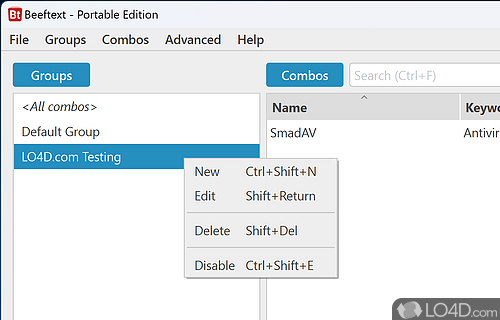
When Beeftext starts, it shows:
- A main window (for managing combos).
- An icon in the system tray (near the clock).
You typically want Beeftext to:
- Start with Windows.
- Run silently in tray most of the time.
There’s usually a checkbox in settings like “Start Beeftext when Windows starts.” Turn that on so text expansion is always available.
Creating Your First Combo (Trigger + Snippet)
Let’s walk through a simple example: your email signature.
Step‑by‑step
- Open Beeftext.
- Click New combo (or similar button).
- Give it a meaningful Name, e.g.,
Email – Full Signature. - In the Trigger field, pick something easy to remember and unlikely to collide with normal words. Many people use a leading symbol, such as:
;sig,sig\sig
- In the Snippet / Content box, type your full signature, for example:text
Best regards, Alex Johnson Senior Product Manager ACME Corp. +1 (555) 123‑4567 alex.johnson@example.com - Save the combo.
Now, in any standard text field in Windows (email client, browser, chat app, text editor):
- Type
;sigand then a breaking character (e.g., space, Enter – depending on your settings). - Beeftext instantly replaces
;sigwith your full signature.
Congratulations, you’ve just automated a small but recurring annoyance.
Best Practices for Designing Good Triggers
Good triggers are the difference between a helpful tool and constant misfires.
1. Use a prefix character
If you use plain words as triggers (like thanks), you’ll get accidental expansions. A prefix character avoids this:
- Semicolon (
;ty,;addr) - Comma (
,ty,,addr) - Backslash (
\ty,\addr) - Double letters (
ttthanks,dddate)
Choose a prefix you don’t normally type in other contexts.
2. Make them easy to remember
Some patterns that work well:
- Abbreviations of the phrase:
;tyvm→ “Thank you very much for your email…”;eta→ “The estimated timeline for this is…”
- Categories + purpose:
;cs-hello→ customer support greeting;cs-refund→ refund boilerplate;dev-log→ logging snippet for code
3. Avoid overly short triggers that you might type normally
;eis too short and might show up in random places.;em1,;em2for email templates is safer.
The rule of thumb: your triggers should be memorable for you, but meaningless in natural text.
Common Everyday Combos You’ll Use Constantly
Here are classic examples that almost everyone benefits from.
1. Contact details and IDs
;ph→+1 (555) 123‑4567;addr→ your full postal address;vat→ your VAT/Tax ID;iban→ your IBAN or bank account info
2. Email templates
;ty→ Short thank‑you reply;tylong→ Longer, more formal thank‑you;fup→ “Just following up on my previous message…”;oom→ “Thanks for reaching out. I’m out of the office until [DATE]…”
3. Customer support macros
;cs-reset→ password reset instructions;cs-delay→ shipping delay explanation;cs-bug→ template requesting logs/steps to reproduce
You can store full multi‑paragraph responses, including line breaks and placeholders.
4. Coding and DevOps snippets
;log→ a logging line with placeholders;todo→// TODO:;tryc→ a try/catch block skeleton;curl→ base cURL command you often tweak
Pair this with your editor’s own snippets for even more power.
5. Markdown / HTML boilerplate
;mdh1→#;mdtbl→ Markdown table skeleton;html5→ HTML5 document skeleton
Over time, you’ll muscle‑memory these triggers and type them without thinking.
Advanced Features That Make Beeftext More Than “Just Snippets”
Beeftext also includes features that push it into “pro” territory while remaining simple to use.
1. Multi‑line and rich snippets
Snippets aren’t limited to a single line—you can store full emails, contracts, FAQ answers, etc.
Just type or paste multi‑line text into the combo editor. Beeftext preserves line breaks when it expands.
2. Cursor placement
One of the most useful advanced capabilities in many text expanders (including Beeftext) is cursor placement: when a snippet expands, the cursor moves to a specific part of the inserted text where you’re supposed to type next.
Example use case:
- Trigger:
;reply - Snippet:text
Hi , Thanks for reaching out about . Best, Alex
You want the cursor to land after “Hi ” so you can immediately type a name, or in the middle line to customize the topic. Beeftext supports a special placeholder token to mark where the cursor should end up after expansion. Look in its documentation for the exact syntax and use that token wherever you want the caret to land after expansion.
3. Variables and dynamic content
Beeftext can insert dynamic values into snippets—things like:
- Current date or time
- Clipboard contents
- Maybe even environment variables or system info, depending on version
Example:
;date→ expands to today’s date in your chosen format.;sigd→ a signature that always includes the current date beneath your name.
This is ideal for logging, journaling, note titles, or dated email templates.
4. Combos that simulate key presses
Some text expanders allow you to include special keys (Tab, Enter) in expansions so that after inserting text they can, for example, tab to the next field. Beeftext also has support for this via special tokens. For example, you can create a combo that:
- Types a block of text.
- Simulates an Enter.
- Simulates a Tab to move focus.
Again, check the built‑in help for the exact key tokens; once you know them, you can create “mini‑macros” that both type and navigate.
How Beeftext Plays with Other Tools (and Teams)
1. Using Beeftext alongside password managers
Text expanders generally don’t work in password fields (for security reasons), and that’s good. For credentials, you should use a proper password manager (Bitwarden, 1Password, etc.), not Beeftext.
The sweet spot:
- Beeftext: everything non‑sensitive that’s still repetitive.
- Password manager: usernames, passwords, 2FA helpers, secure notes.
2. Shared combos for a support or sales team
Beeftext stores combos in plain files. That means you can:
- Export your combo set.
- Put it in a shared folder (network drive, cloud storage).
- Have teammates import the same combos.
Everyone’s replies become more consistent, and onboarding new staff means “install Beeftext, import this file.”
3. Pairing with other productivity tools
Beeftext plays nicely with:
- Clipboard managers – copy history + text expansion = less typing, more reuse.
- Window managers / tiling tools – snap your editor and email client side‑by‑side while your snippets fill the gaps.
- Task managers – standardize task naming or formatting (e.g.,
;tbugto insert a bug template into your tracker).
Limitations and Things to Keep in Mind
No tool is perfect. Some things to be aware of with Beeftext:
- Windows‑only – No native macOS or Linux build. If you need cross‑platform support, you’ll need a different solution on other OSes.
- No built‑in cloud sync – You control where the combo file lives; that’s a plus for privacy, but you’ll need your own sync (Dropbox/OneDrive/etc.) if you want it across multiple PCs.
- Not a full macro engine – While you can simulate some keys, it’s not intended to automate arbitrary complex workflows like AutoHotkey can.
- App compatibility – As with all text expanders, there may be edge cases in certain apps or very secure fields where expansion doesn’t work properly.
- Learning curve for advanced features – Basic snippets are trivial; variables and key codes require a quick read of the docs, but that’s still far simpler than learning a scripting language.
For most people’s use cases—email, documents, support replies, coding boilerplate—these limitations are minor compared to the time saved.
A 30‑Minute Beeftext Setup That Pays You Back Every Day
If you want a concrete starting plan:
Minutes 0–5: Install & core settings
- Install Beeftext.
- Enable “Start with Windows.”
- Pick your preferred trigger prefix (
;,,, or\).
Minutes 5–15: Create 10–15 high‑value combos
Focus on:
- Signature(s): work and personal
- Contact info and IDs (phone, address, VAT)
- 3–5 email openers and closers
- 3–5 replies you’ve sent more than twice this month
- 1–2 code or markdown snippets
Minutes 15–20: Add 1–2 advanced snippets
- One with cursor placement where you always need to fill in a name or ID.
- One with current date/time in the snippet if you log or journal.
Minutes 20–30: Use it in real work
- Draft an actual email and force yourself to reach for triggers.
- Write a short doc or ticket using your code/markdown combos.
- Note which phrases you still typed manually—those are future combos.
Within a day or two, you’ll start instinctively typing triggers instead of full phrases. That’s when Beeftext essentially disappears into your muscle memory—and that’s exactly what you want.
Final Thoughts
Beeftext is one of those rare tools that:
- Is genuinely free and open‑source.
- Does one job exceptionally well.
- Stays out of your way once configured.
You don’t need to overhaul your workflow or learn a new ecosystem. You just replace a handful of frequently typed lines with short, memorable triggers—and let Beeftext quietly hand you back a few minutes every single day.
In a year, those minutes turn into hours of reclaimed time and a lot fewer typos and copy‑paste errors. For a tiny tray app that most people have never heard of, that’s a pretty impressive return.