How many times have you found yourself sitting at your desk, repeatedly pressing F5 or clicking the refresh button, waiting for updated information? Whether you’re tracking a live auction, monitoring stock prices, following breaking news, or checking for new job listings, manual page refreshing is one of the most tedious and time-consuming activities in modern web browsing.
Enter Auto Refresh Page—a lightweight but powerful browser extension that automates this repetitive task. By setting your preferred refresh interval once, you can forget about manual updates and let the extension handle page reloads in the background. This simple tool has become indispensable for professionals, traders, developers, and anyone who needs to stay informed about dynamic, frequently changing information.
In this comprehensive guide, we’ll explore everything you need to know about Auto Refresh Page: how it works, its key features, real-world use cases, setup instructions, and why it should be your go-to extension for automatic page refreshing.
What is Auto Refresh Page?
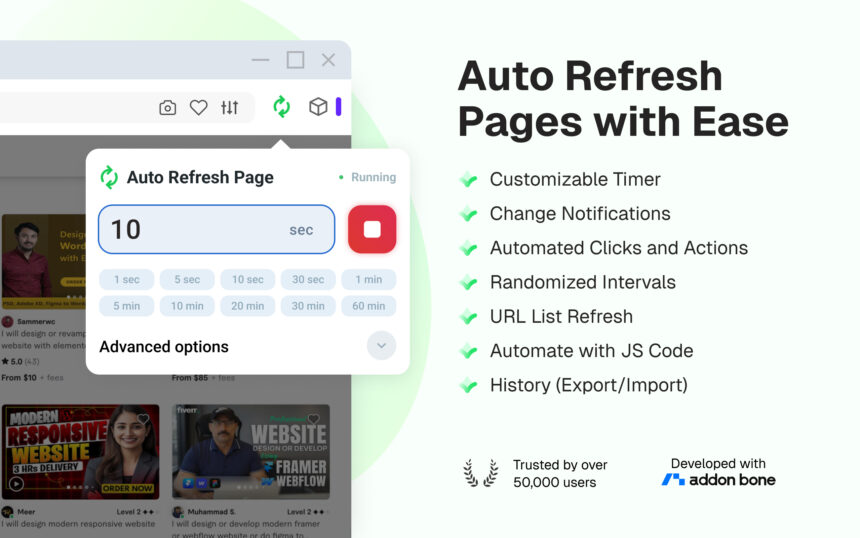
Auto Refresh Page is a browser extension designed to automatically reload web pages at predetermined intervals without any manual intervention. Rather than continuously clicking the refresh button, you simply install the extension, configure your desired refresh interval (from seconds to hours), and let it work in the background.
The extension simulates natural page refreshes, sending requests to the web server and updating the displayed content on your screen. This happens seamlessly and doesn’t interrupt your ability to interact with the page—you can read content, click links, or enter data while the automatic refreshes happen quietly in the background.
Key Philosophy
The extension operates on a simple principle: eliminate repetitive manual actions and reclaim your time. By automating the refresh process, you can focus on what matters—analyzing information, making decisions, or completing other tasks—while the extension ensures you always have the latest content.
Core Features: What Auto Refresh Page Offers (Extended)
1. Customizable Refresh Intervals
This is the foundation of the extension’s functionality. You’re not limited to fixed options; you can set refresh intervals with granular control:
- Predefined options: 5 seconds, 10 seconds, 15 seconds, 5 minutes, 10 minutes, 15 minutes, 30 minutes, 1 hour
- Custom intervals: Set any interval in seconds, minutes, or hours
- Precision control: Enter exact values for specialized monitoring needs
For example, if you’re tracking a live auction with 2-3 minutes remaining, set 5-second refreshes. For monitoring a news site throughout your workday, perhaps 10-minute intervals suffice. You can also set millisecond precision for developers testing rapid API changes.
Practical example: Set 2.5-second intervals for high-frequency trading, or 45-minute intervals for overnight monitoring without excessive resource consumption.
2. Per-Tab and Per-URL Settings
Not all websites need the same refresh rate. Auto Refresh Page lets you configure different intervals for different tabs and URLs:
- Save preferences per domain: Different sites can have different settings automatically
- Manage multiple tabs: Set one refresh interval on your stock trading tab and a different interval on your freelance job board tab
- Automatic memory: The extension remembers your settings for each URL and applies them automatically when you revisit
- Subdomain recognition: Different refresh rates for www.example.com vs api.example.com if needed
This means you can have your stock trading page refreshing every 5 seconds while your news feed refreshes every 10 minutes—all without manual adjustment.
3. Visual Timer Display
The extension can display a countdown timer directly on the webpage, showing you exactly when the next refresh will occur:
- Customizable placement: Position the timer where it’s visible but not intrusive (top-right, bottom-left, corner overlay)
- Countdown format: Shows seconds remaining until the next refresh in real-time
- Toggle on/off: Hide the timer if you prefer a clean page view without distractions
- Timer styling: Choose colors, fonts, and opacity to match your workflow
- Blink/flash alerts: Visual indication when refresh is imminent (5-2 seconds remaining)
The visual timer is especially valuable for auction bidding, where you need to know precisely when the next price check occurs before placing your final bid.
4. Hard Refresh (Cache Clearing)
By default, browser refreshes use cached data, which might show outdated information if the server hasn’t sent new data. The hard refresh option:
- Clears browser cache for the specific page before reload
- Clears cookies associated with the page to force fresh authentication if needed
- Forces fresh content directly from the server, bypassing all cache layers
- Selective clearing: Choose which types of cache to clear (HTML, CSS, JavaScript, images, or all)
- CDN bypass: Ensures you’re getting content directly from origin servers, not distributed cache networks
This is crucial for financial dashboards, inventory systems, and any site using aggressive caching that prevents real-time updates.
5. One-Click Stop Feature
Need to pause the automatic refresh? Simply click anywhere on the webpage, and the automatic refreshing will immediately stop.
Alternative stop methods:
- Keyboard shortcut: Press a custom hotkey to pause/resume instantly
- Stop after X refreshes: Set automatic stopping after 10, 50, or 100 reloads
- Timed auto-stop: Set “refresh for 30 minutes, then stop automatically”
- Stop on condition: Automatically stop refreshing if a specific element changes or text appears
- Extension icon click: Toggle stop/start directly from the extension popup
This flexibility prevents accidental infinite refreshing and saves resources.
6. Sound Alerts and Notifications
The extension can alert you when important events occur:
- Sound notifications: Play a beep, chime, or custom audio when a refresh happens
- Desktop notifications: Pop-up alerts inform you of refresh completion or detected changes
- Text detection: Set the extension to notify you only when specific text appears on the page
- Audio urgency levels: Different sounds for standard refresh vs. alert detection (soft chime vs. loud alarm)
- Mute mode: Silence notifications during meetings or focus time with a single toggle
Text detection examples:
- Alert when “SOLD OUT” appears on a product page
- Notify when your username appears in comments (social media monitoring)
- Sound alarm when stock price drops below threshold
7. Auto-Refresh List Management
View and manage all pages you’ve set up for auto-refresh in one centralized location:
- Dashboard overview: See all active refreshes with timestamps of last update
- Pause/resume individual pages: Control refreshing without stopping others
- Edit settings on the fly: Modify refresh intervals without leaving the management interface
- Bulk operations: Start/stop multiple refreshes at once with checkbox selection
- History log: See refresh history, success/failure rates, and response times
This is particularly useful when managing 5-10 simultaneous monitoring tasks across different sites.
8. Smart Stop After X Refreshes
Set a limit for how many times a page should refresh before the extension automatically stops:
- Prevents resource drain: Stop automatic refreshes after 50 reloads to save CPU/battery
- Scheduled monitoring: Refresh 30 times then automatically stop (useful for time-limited tasks)
- Customizable limits: Set any number that fits your workflow
- Progress counter: Display how many refreshes have occurred vs. the limit
- Pre-set templates: “Quick check (10 refreshes)”, “Hour-long monitoring (720 refreshes)”, “All-day monitoring (unlimited)”
This prevents accidental resource hogging and allows precise time-boxed monitoring.
9. Random Interval Mode
For advanced use cases, randomize the refresh interval within a specified range:
- Avoid detection: Mimics natural browsing patterns by varying refresh timing (5-8 seconds instead of exactly 5)
- Prevent rate limiting: Servers are less likely to block refreshes that don’t follow rigid patterns
- Flexible monitoring: Set minimum and maximum intervals; the extension randomizes between them
- Gaussian distribution: Ensure randomization feels natural, not random
- Jitter control: Fine-tune randomness level (slight variation vs. high randomness)
Perfect for monitoring sites that aggressively rate-limit or have anti-bot protections.
10. Click Link or Button on Page
One of the most advanced features: automatically click a specific link or button at each refresh interval.
Use cases:
- Pagination monitoring: Automatically click “Next page” button to scan through all listings
- Accordion expansion: Click “Show more” or collapsible sections to reveal hidden content
- Dynamic content loading: Click “Load more” buttons to fetch additional items (job listings, auction items)
- Button interaction: Automatically click “Refresh” or “Update” buttons on the page itself
- Navigation: Follow a specific link path (e.g., click “Today’s deals” → wait → click “See all”)
- Form submission: Submit a search or filter form at each interval to monitor changing results
How it works:
- Identify the target element by CSS selector, XPath, or button text
- The extension finds and clicks the element before or after each refresh
- Wait for content to load, then proceed with next refresh cycle
Example: Monitor a job board by automatically clicking “Load more jobs” every 30 seconds, then refreshing the page to see newly loaded positions.
11. Specific Time Scheduling
Instead of interval-based refreshing, refresh at exact times of day:
Scheduling options:
- Hourly at minute mark: Refresh at :00, :15, :30, :45 each hour
- Specific times: Refresh at 9:00 AM, 12:30 PM, 5:45 PM (e.g., market open times)
- Countdown to time: Refresh every 10 seconds starting at 2:59 PM until exactly 3:00 PM market close
- Business hours only: Refresh weekdays 9 AM-5 PM, skip weekends
- Weekend mode: Different schedule for Saturday/Sunday
- Timezone support: Schedule in your local timezone regardless of server location
Real-world examples:
- Refresh market data exactly at 9:30 AM market open
- Monitor job boards at 8 AM, 12 PM, 5 PM when most new jobs post
- Check news feeds every hour on the hour
- Monitor Stocktwits or trading chat rooms exactly at earnings announcement times
12. Run JavaScript on Each Refresh
Execute custom JavaScript code at each refresh interval — perfect for developers and power users:
JavaScript execution capabilities:
- Extract and log data: Run JS to parse page content and log specific values to console
- DOM manipulation: Modify page elements before refresh (highlight important sections, hide ads, expand collapsed content)
- API calls: Make additional API requests to supplement page refresh
- Form auto-fill: Automatically populate search boxes or filters before refresh
- Data extraction: Scrape specific elements and send to external services
- Conditional logic: Only refresh if certain JS conditions are met
- State management: Save page state before refresh, restore after
Practical examples:
Example 1 – Stock Price Extraction:
// Extract current price and save to variable
const price = document.querySelector('.price-box').innerText;
console.log(`Current price: $${price}`);
// Only continue if price is below threshold
if (parseFloat(price) < 100) {
  localStorage.setItem('alertPrice', price);
}Example 2 – Auto-Fill Search:
// Auto-fill search box before each refresh</em>
document.querySelector('input[type="search"]').value = "JavaScript developer";
document.querySelector('button[type="submit"]').click();
Example 3 – Expand Collapsed Sections:
// Click all "Show more" buttons to reveal hidden content</em>
document.querySelectorAll('.expand-button').forEach(btn => btn.click());
Example 4 – API-Based Monitoring:
// Make additional API call to get real-time data</em>
fetch('https://api.example.com/price')
  .then(r => r.json())
  .then(data => {
    console.log('API Data:', data);
    <em>// Store in localStorage for later use</em>
    localStorage.setItem('apiData', JSON.stringify(data));
});Example 5 – Conditional Refresh:
// Only continue refresh if page contains certain element</em>
if (!document.querySelector('.error-message')) {
  <em>// Page is good, proceed with refresh</em>
  return true;
} else {
  <em>// Error detected, stop refreshing</em>
  return false;
}Advanced features:
- Error handling: Catch JS errors and log them without breaking refresh cycle
- Async support: Execute async/await code and wait for promises to resolve
- External libraries: Load libraries like jQuery if needed for complex DOM manipulation
- Debugging: Step through code execution with built-in console access
- Performance monitoring: Track how long each JS execution takes
This feature transforms Auto Refresh Page from a simple refresh tool into a powerful web automation and monitoring platform.Core Features: What Auto Refresh Page Offers
Real-World Use Cases: When Auto Refresh Page Shines
1. Financial Trading and Stock Monitoring
Day traders and active investors need real-time price updates to make timely decisions.
Use case: Monitor stock prices, cryptocurrency values, or forex rates. Set 5-10 second refresh intervals to catch price movements and execute trades when specific price points are reached.
Advantage: Never miss a trading opportunity due to delayed information.
2. E-Commerce and Online Auctions
Competitive online bidding requires constant awareness of auction status and bid history.
Use case: Refresh auction listings every 3-5 seconds in the final minutes before close. Set a visual timer to see exactly when the next refresh occurs.
Advantage: Detect last-minute bids instantly, position your bid appropriately, and increase your chances of winning.
3. Job Board Monitoring
Freelancers and job seekers need to catch new opportunities before competitors.
Use case: Refresh job listing sites (Upwork, Fiverr, Indeed) every 2-5 minutes during active job hunting. Set text detection to notify you only when specific job titles or keywords appear.
Advantage: Spot new postings within seconds. Combine with sound alerts to be notified even if you’re not actively watching.
4. News and Breaking News Coverage
Journalists, researchers, and news enthusiasts need to stay informed as stories develop.
Use case: Refresh news sites every 5-10 minutes for major news, or 30-60 seconds for breaking story updates.
Advantage: Always have the latest developments without manually checking.
5. Website Uptime and Status Monitoring
Web developers and system administrators need to monitor website availability.
Use case: Refresh your website or monitoring dashboard every 30-60 seconds to detect downtime immediately.
Advantage: Early detection of issues means faster response time.
6. Social Media Feed Tracking
Content creators and marketers monitor engagement and trends.
Use case: Refresh your Twitter feed, LinkedIn profile, or TikTok analytics every 5-10 minutes to track engagement in real-time.
Advantage: Spot trending topics early and capitalize on viral moments.
7. Inventory and Product Availability Checking
E-commerce managers and resellers track stock levels.
Use case: Refresh inventory dashboards or product pages every 10-30 minutes to monitor stock availability.
Advantage: Detect restocks immediately and optimize fulfillment timing.
8. API and Server Response Testing
Developers testing web applications benefit from automatic refreshing during QA and testing.
Use case: Refresh a development server to test how it handles repeated requests, or monitor API responses during load testing.
Advantage: Automate testing scenarios and detect performance degradation.
9. Competitor Price and Product Monitoring
E-commerce businesses and price comparison services track competitor pricing.
Use case: Refresh competitor product pages every 30-60 minutes to detect price changes.
Advantage: Maintain competitive pricing automatically and make data-driven decisions.
10. Research and Data Collection
Researchers monitoring dynamic datasets for changes.
Use case: Refresh research databases, survey responses, or experiment monitoring dashboards throughout your workday.
Advantage: Automate data collection and catch updates as soon as they occur.
How to Install Auto Refresh Page
Step 1: Choose Your Browser
Auto Refresh Page is available on multiple browsers:
- Google Chrome (recommended)
- Microsoft Edge
- Firefox
- Opera
- Brave
Step 2: Install from the Official Store
- Visit the Chrome Web Store
- Search for “Auto Refresh Page“
- Click “Add to Chrome”
- Confirm permissions
- The extension icon appears in your toolbar
- Visit the Firefox Add-ons site
- Search for “Auto Refresh Page“
- Click “Add to Firefox”
- Confirm permissions
- The extension is ready to use
For Edge:
- Visit the Microsoft Edge Add-ons store
- Search for “Auto Refresh Page“
- Click “Get”
- Confirm the installation
Step 3: Verify Installation
After installation:
- Look for the extension icon in your browser toolbar
- If hidden, click the puzzle icon and find the extension
- Pin the extension to your toolbar for easy access
How to Use Auto Refresh Page: Step-by-Step
Basic Setup
1. Navigate to the page you want to refresh
Open the website or web page you want to automatically refresh in your browser.
2. Click the extension icon
Click the Auto Refresh Page icon in your browser toolbar. A popup menu appears with settings options.
3. Choose your refresh interval
You have two options:
Option A – Quick Select (Predefined Intervals)
- Click one of the quick buttons: 5 sec, 10 sec, 5 min, 10 min, etc.
- The refresh starts immediately
- Your chosen interval is automatically saved for this URL
Option B – Custom Interval
- Click “Custom” or the time input field
- Enter your desired interval (in seconds, minutes, or hours)
- Click “Start” or press Enter
- The extension begins refreshing at your specified interval
4. Monitor the refresh
- If you enabled the visual timer, watch the countdown on the page
- The extension reloads the page silently every X seconds/minutes
- Your page always displays the latest content
5. Stop the refresh
- Quick stop: Click anywhere on the webpage
- Settings stop: Click the extension icon and select “Stop”
- Automatic stop: If you set a refresh limit, it stops automatically
Advanced Configuration
Enable Hard Refresh:
- Click the extension icon
- Find the “Hard Refresh” or “Clear Cache” toggle
- Enable it
- Future refreshes will clear cache/cookies before reloading
Set Text Detection:
- Open extension settings
- Find “Text Detection” or “Keyword Alert”
- Enter the text you want to detect
- Enable notifications
- The extension alerts you when it finds the text
Configure per-URL Preferences:
- Access the extension’s auto-refresh list
- Find the URL you want to customize
- Edit settings for that specific URL
- Changes apply only to that URL
Set Refresh Limit:
- In settings, find “Stop After X Refreshes”
- Enter a number (e.g., 30)
- The extension automatically stops after that many refreshes
Performance and Resource Consumption
CPU Impact
Auto Refresh Page is lightweight and efficiently designed:
- Minimal resource usage: Each refresh uses the same resources as a manual refresh
- Configurable impact: Longer refresh intervals (5+ minutes) consume minimal resources
- Multiple tabs management: The extension handles multiple refreshes efficiently
Optimization tips:
- For background monitoring, use 5-10 minute intervals instead of seconds
- Close unnecessary tabs to reduce overall refresh operations
- Use the “Stop After X Refreshes” feature to prevent unlimited refreshing
Battery and Network Impact
- Network: Each refresh consumes the same bandwidth as a manual refresh
- Battery: Continuous refreshing drains battery faster; use longer intervals on mobile devices
Security and Privacy Considerations
Data Privacy
- Local storage only: Settings stored locally on your device
- No data collection: The extension doesn’t collect or share your browsing data
- No external servers: Communication happens only between your browser and the websites you visit
- Permission transparency: Minimal permissions requested
Safety Best Practices
- Download only from official stores: Install from Chrome Web Store, Firefox Add-ons, or official Edge Store
- Check permissions: Review requested permissions before installing
- Update regularly: Keep the extension updated for security patches
- Beware of phishing: Only enable refresh on legitimate websites you trust
- Use for personal pages only: Don’t enable on shared computers without awareness
Troubleshooting Common Issues
“Refresh isn’t working or page isn’t updating”
Possible causes:
- Website might be serving cached content from a CDN
- Server might be rate-limiting requests
Solutions:
- Enable “Hard Refresh” option to clear cache
- Try longer intervals to avoid rate-limiting
- Check if the website has an API endpoint that provides faster updates
“Extension isn’t responding or crashes”
Possible causes:
- Browser cache corrupted
- Extension needs update
- Conflicting browser extensions
Solutions:
- Uninstall and reinstall the extension
- Clear browser cache and cookies
- Disable other extensions temporarily
- Update your browser to the latest version
“Page resets scroll position after each refresh”
This is the default browser behavior—most pages scroll back to the top after reload.
Solutions:
- Check if the extension has a “Remember scroll position” option
- Use the extension on pages where scroll position doesn’t matter
“Getting ‘Too many requests’ errors”
The website is rate-limiting your refresh requests, detecting them as unusual traffic.
Solutions:
- Increase refresh interval (use 5+ minute intervals)
- Enable “Random Interval” mode to vary refresh timing
- Some websites block aggressive refreshing; use with caution
“Text detection notifications not working”
Possible causes:
- Text detection might be disabled by default
- Text string might not match exactly
- Notifications might be disabled in browser settings
Solutions:
- Verify text detection is enabled in extension settings
- Check exact spelling of the text you’re searching for
- Verify browser notifications are enabled
Best Practices for Using Auto Refresh Page
1. Match the Refresh Interval to Your Needs
- Stock trading: 5-10 seconds for active monitoring
- News updates: 5-10 minutes for periodic checks
- Auctions (final minutes): 3-5 seconds for intense bidding
- Job boards: 2-5 minutes for active job hunting
- Background monitoring: 15-30 minutes for low-priority updates
2. Use Hard Refresh Judiciously
Hard refresh consumes more resources and data. Only enable when:
- You suspect the site is serving stale cached content
- You need absolutely current data from the server
- Standard refresh isn’t providing updated information
3. Set Reasonable Refresh Limits
Avoid continuous, unlimited refreshing:
- Set “Stop After X Refreshes” to prevent resource drain
- Use time-boxed monitoring sessions
- Disable refreshing when you step away from your desk
4. Combine with Text Detection for Smart Alerts
Instead of manually checking pages:
- Set text detection for keywords you’re tracking
- Enable sound/notification alerts
- Let the extension work silently
5. Respect Website Terms of Service
Before enabling aggressive refresh intervals:
- Check the website’s terms of service
- Avoid interfering with the website’s normal operation
- Don’t use for scraping (if prohibited)
- Use appropriate intervals for monitoring
6. Monitor Resource Usage
On older devices or when refreshing many tabs:
- Use longer refresh intervals
- Limit the number of simultaneous refreshes
- Close unused refresh tabs
- Monitor CPU/memory usage
Comparison: Auto Refresh Page vs. Alternatives
| Feature | Auto Refresh Page | Manual F5 | JavaScript | Dedicated App |
|---|---|---|---|---|
| Ease of use | ⭐⭐⭐⭐⭐ | ⭐⭐⭐⭐⭐ | ⭐⭐ | ⭐⭐⭐ |
| Setup time | <30 sec | Instant | 10+ min | 2-5 min |
| Customization | ⭐⭐⭐⭐⭐ | None | ⭐⭐⭐⭐⭐ | ⭐⭐⭐⭐ |
| Resource usage | Low | None | Variable | Medium |
| Notifications | ⭐⭐⭐⭐⭐ | None | ⭐⭐⭐ | ⭐⭐⭐⭐⭐ |
| Per-URL settings | ⭐⭐⭐⭐⭐ | N/A | N/A | ⭐⭐⭐⭐ |
| Cross-browser | ⭐⭐⭐⭐⭐ | ⭐⭐⭐⭐⭐ | N/A | Variable |
| Cost | Free | Free | Free | Often paid |
Verdict: Auto Refresh Page offers the best balance of simplicity, features, and resource efficiency for most users.
Conclusion: Reclaim Your Time
In our fast-paced digital world, waiting and manually refreshing are luxuries we can no longer afford. Auto Refresh Page transforms the way you interact with dynamic web content—from passive manual checking to intelligent, automated monitoring.
Whether you’re a trader needing real-time market data, a job seeker chasing opportunities, a developer monitoring deployments, or a researcher tracking changing datasets, Auto Refresh Page eliminates tedium and ensures you’re always informed.
Installation takes 30 seconds. Start using it today and reclaim hours of productivity every week.
The next time you find yourself repeatedly hitting refresh, remember: there’s a smarter way. Download Auto Refresh Page and let automation handle the repetition while you focus on what truly matters.