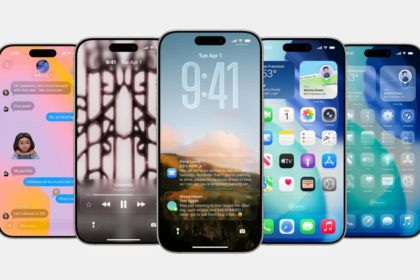
If you live in a city with smog, seasonal wildfires, or chronic traffic pollution, the “how’s the air today?” question is no longer casual—it’s a health decision. Modern iPhones can tell you exactly what the air quality is at a glance, thanks to built‑in AQI (Air Quality Index) widgets and dedicated air‑quality apps that hook into your Home Screen and Notification Center. As of 2026, you can add a real‑time AQI widget that shows pollution levels, key pollutants, and simple color‑coded alerts, so you know whether it’s safe to run outside, open your windows, or keep the kids indoors. Pairing that widget with a smart Home Screen layout turns your iPhone into a personal environmental dashboard, helping you manage asthma, allergies, and long‑term exposure risk without constantly opening apps.
Why this matters
Air pollution is often called an “invisible killer” because you can’t see or smell PM2.5, ozone, or NO₂, yet they directly impact lung function, cardiovascular health, and even cognitive performance. For people with asthma, allergies, or respiratory conditions, high‑AQI days can trigger attacks, missed workdays, and ER visits. For athletes and runners, poor air quality reduces endurance and increases the risk of long‑term lung damage. Even for “healthy” people, chronic exposure is linked with higher rates of cardiovascular disease and early mortality.
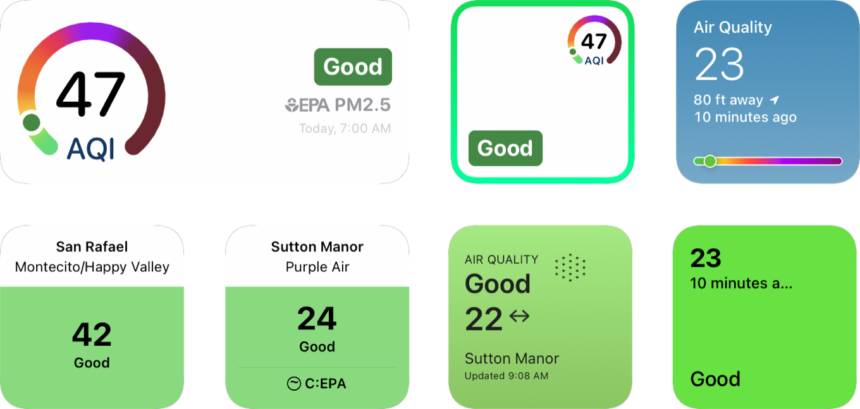
An iPhone AQI widget makes this invisible threat visible in the most frictionless way possible: every time you unlock your phone or glance at the Home Screen, you see a number, a color, and a simple label (Good, Moderate, Unhealthy, etc.). That tiny visual cue can change your behavior: delaying a run, closing windows, running an air purifier, or using a mask outdoors. Instead of waiting to feel “off” or read a headline about a pollution spike, you let the widget proactively inform your choices. For families, caregivers, and remote workers, that real‑time, local‑level awareness is often the difference between feeling at risk and feeling in control.
How iPhone AQI tracking works
On modern iPhones, AQI data comes from a mix of government‑run monitoring stations and private air‑quality networks. The key is that the data is tied to your location, so your widget reflects your immediate neighborhood, not an entire city’s average. There are two main ways this appears on your iPhone:
- Apple Weather and Maps (built‑in AQI)
In supported regions (including much of the United States, Europe, India, and Japan), Apple’s Weather app and Maps include an AQI overlay. You can see the AQI in the Weather app either as a separate screen or via a map layer, and you can also add Air Quality as a widget on the Home Screen or Lock Screen, which shows the current AQI and a simple description. This feature is powered by data providers like BreezoMeter (now part of Google) and government sources, so it’s free and requires no extra app. - Dedicated AQI widgets (Breathable, Air Quality apps)
If Apple Weather doesn’t cover your location or you want more granular control, you can use apps like Breathable or Air Quality Index – Live AQI. These apps pull data from extensive networks (often hundreds of thousands of monitoring stations) and expose customizable widgets for iPhone, iPad, and Apple Watch. You can choose which pollutants to display (PM2.5, PM10, ozone, CO, NO₂, SO₂), set a specific location, and tweak the widget’s appearance so it fits your aesthetic. The widget then updates automatically, showing the current AQI, a color code, and often a simple emoji or scale that tells you at a glance whether air is safe for outdoor activities.
These widgets are designed to be “glanceable”: you don’t need to open the app to understand the risk. A red widget at the top of your Home Screen is enough to nudge you toward a mask, an indoor workout, or a school‑pickup detour.
How to add an AQI widget to your iPhone
The exact steps depend on whether you use Apple’s built‑in Air Quality widget or a third‑party app, but both are straightforward:
- Using Apple’s Air Quality widget (iOS 15–18)
- Long‑press on an empty area of the Home Screen until apps start to wiggle, then tap the + button in the top‑left.
- Scroll down and choose Weather.
- Select the Air Quality widget size that fits your layout.
- Tap Add Widget, then place it near the top of your Home Screen.
- If you want it on the Lock Screen, go to Settings → Wallpaper → Lock Screen → Add Widget → Weather → Air Quality, and drag it into place.
The widget now updates automatically, showing your current AQI, a color band (green/yellow/red/purple), and a brief description like “Good,” “Moderate,” or “Unhealthy for Sensitive Groups.”
- Using Breathable or similar apps
- Install Breathable from the App Store (or another AQI app of your choice).
- Open the app, agree to location access, and let it detect your current location or set a custom one (by address or map click).
- Tap the Widgets section and choose the widget size and design (text‑only, compact, or large).
- Long‑press your Home Screen, tap +, find the app in the widget list, add the widget, and place it prominently.
- Optionally, enable notifications so the app can alert you when air quality crosses a threshold you care about (e.g., AQI above 100).
Once the widget is in place, you can usually tap it to open the app for more detail: hourly AQI trends, pollutant breakdowns, and forecasts. That two‑tap workflow (glance at the widget, tap for details) is ideal for making fast, informed decisions about outdoor time.
Key features that make AQI widgets essential
Beyond the simple number, a good AQI widget brings several powerful features to your Home Screen:
- Real‑time and location‑based data
The widget pulls the latest AQI from the nearest monitoring station or network, ensuring you’re not relying on a generic city‑level index. If you travel or work in different neighborhoods, you can also add widgets for those locations and switch between them. - Thresholds and alerts
Many apps let you set custom thresholds (e.g., “warn me when AQI > 100” or “notify me when PM2.5 > 35 μg/m³”). This is invaluable for people with asthma, COPD, or heart conditions who need to avoid high‑exposure windows. - Pollutant breakdowns and health insights
Advanced widgets can show which specific pollutants are driving the AQI (PM2.5 vs ozone vs NO₂) and provide brief explanations of what those pollutants mean for your health. This helps you understand whether a spike is from traffic, wildfires, or industrial sources. - Forecasts and trend views
Some apps tie in 24–48‑hour forecasts, letting you plan outdoor runs, hikes, or events for the cleanest air window. You can also view historical data to see whether a given location is chronically polluted or only occasionally bad. - Cross‑device sync (Apple Watch, iPad, macOS)
If you use an Apple Watch, you can add a compact AQI widget to your watch face so you can see pollution levels while you’re on the move. Breathable and other apps sync across iPhone, iPad, and macOS, so your home, work, and school‑commute locations are all visible in one place.
For people who track their health with wearables, an AQI widget is a natural companion to heart‑rate and sleep data. You can correlate symptoms (shortness of breath, wheezing, headaches) with AQI spikes and build a personal “safe‑exposure” profile over time.
How to use AQI data in real life
To turn an AQI widget into a behavior‑changing tool, you need concrete rules, not just a number. Here’s a simple, actionable framework you can adopt:
- Good (0–50):
Feel free to run, bike, or play outside. Windows can stay open, and air purifiers can run at low or medium. - Moderate (51–100):
Most people can exercise outdoors, but sensitive individuals should limit prolonged exertion. If you have asthma or allergies, consider a mask or staying in less polluted areas. - Unhealthy for Sensitive Groups (101–150):
Children, older adults, and people with respiratory or heart conditions should avoid outdoor activity, especially in the morning when traffic pollution peaks. Run outdoor workouts indoors or reschedule for a cleaner window. - Unhealthy (151–200):
Everyone should limit time outside, and strenuous activities should move indoors. Keep windows closed, use air purifiers, and consider masks even for short walks. - Very Unhealthy to Hazardous (200+):
Avoid all outdoor activity if possible. Keep windows closed, run air purifiers on high, and avoid using gas stoves or open flames indoors.
You can also plan your week around AQI forecasts. If you see a low‑pollution window on Saturday morning, schedule your long run or bike ride then. If a wildfire or heavy traffic week is forecast, you can shift outdoor meetings indoors, use public transport, or work from a cleaner location.
The real downsides and limitations
iPhone AQI widgets are powerful, but they have limits. Coverage is not universal; Apple’s built‑in Air Quality widget only works in select regions, and some rural areas may not have monitoring stations nearby. In those cases, the widget may show interpolated data based on distant stations or fall back to a generic index, which is less accurate than local readings. Additionally, consumer‑level AQI widgets are not medical devices, so they can’t replace professional medical advice, spirometry, or personalized treatment plans.
Data‑source transparency is another concern. Some apps and even Apple rely on third‑party providers whose models and station networks are not fully open, so you can’t always see the raw sensor data. Finally, visual simplicity can be a double‑edged sword: a single color code simplifies decision‑making but hides nuances such as ozone‑dominated days versus PM2.5‑driven spikes, which may matter for certain health conditions. Users who want deeper insights will still need to dip into the full app occasionally rather than relying solely on the widget.
The bottom line
An iPhone AQI widget is one of the most practical, low‑friction health tools you can add to your Home Screen. By turning invisible air pollution into a visible, color‑coded metric, it changes how you interact with your environment on a daily basis. For people with asthma, allergies, cardiovascular issues, or who live in high‑pollution areas, pairing Apple’s built‑in Air Quality widget or a third‑party app like Breathable with a small set of thresholds can dramatically reduce exposure and improve well‑being. If you’re serious about health‑conscious living, spend five minutes setting up an AQI widget, put it where you can’t miss it, and let your iPhone help you breathe easier.