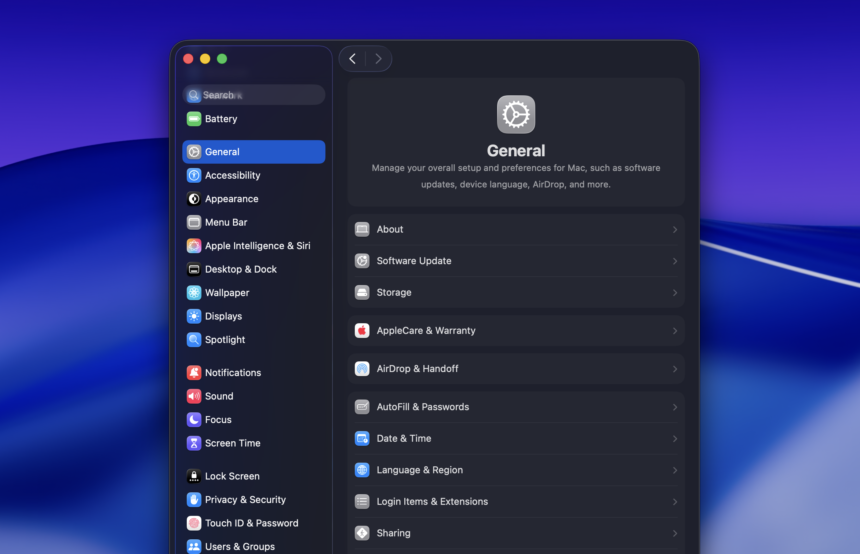
If you’re tired of your MacBook feeling sluggish and outdated, it’s time to give it a refresh! With a few simple adjustments, you can make your old MacBook feel like a brand new machine. Here are some easy settings tweaks to boost performance, improve privacy, and personalize your Mac experience.
Boost Performance and Speed
One of the first things you can do to breathe new life into your MacBook is to optimize its performance. Here’s how:
- Open Activity Monitor and check for any apps or processes that are using excessive CPU or memory. Quit any unnecessary apps to free up resources.
- Go to System Preferences > Energy Saver and adjust the settings to maximize battery life. Consider enabling the Power Adapter option to optimize performance when plugged in.
- Clear out old, unused files and apps. Use the Storage Management tool in About This Mac to identify and remove large, unnecessary files.
- Consider upgrading your MacBook’s storage. Adding more RAM or switching to a solid-state drive (SSD) can significantly improve speed and responsiveness.
Enhance Privacy and Security
Privacy is a top concern for many Mac users. Here’s how to tighten up your MacBook’s privacy settings:
- Go to System Preferences > Security & Privacy and review the settings. Ensure that FileVault is enabled for full-disk encryption.
- In the Privacy tab, manage access to your camera, microphone, and location services. Only allow trusted apps to access these features.
- Consider using a VPN (Virtual Private Network) to encrypt your internet traffic and protect your online privacy. You can find reliable VPN services like ExpressVPN or NordVPN to secure your connection.
Personalize Your Mac Experience
Make your MacBook feel uniquely yours with these personalization tips:
- Change your desktop background to a custom image that inspires you. You can find beautiful wallpapers online or use your own photos.
- Customize your dock by rearranging app icons and adding or removing items. Right-click on the dock and select Dock Preferences to make changes.
- Set up Siri shortcuts for quick actions. Go to System Preferences > Siri and create custom phrases to trigger specific tasks.
- Use Automator to create workflows that automate repetitive tasks. You can find many pre-made workflows online or create your own.
Alternatives and Pro Tips
If you’re looking for more advanced ways to optimize your MacBook, consider these alternatives and pro tips:
- Clean Install: If your MacBook is severely sluggish, consider doing a clean install of macOS. This will remove any accumulated junk and give you a fresh start.
- Use Third-Party Apps: There are many third-party apps that can enhance your Mac experience. For example, CleanMyMac X can help you clean and optimize your Mac, while Setapp offers a suite of productivity apps.
- Optimize Startup Items: Go to System Preferences > Users & Groups > Login Items to manage which apps launch at startup. Only keep essential apps here to speed up your Mac’s boot time.
The Bottom Line
By making these simple settings tweaks, you can make your old MacBook feel like a brand new machine. From boosting performance to enhancing privacy, these tips will help you get the most out of your Mac. So, give your MacBook a refresh and enjoy a faster, more personalized, and secure computing experience!